Setting up the Victron SmartSolar MPPT 75/15 isn’t complicated once you know the right order to do things. This little controller is perfect for small off-grid setups — RVs, vans, cabins, that kind of thing. I’ll walk you through wiring it up, getting the Bluetooth app connected, updating the firmware, and setting your battery parameters so everything charges the way it should.
⚡ Quick Guide: How to Setup Your MPPT Controller
- Mount the controller somewhere with decent airflow.
- Hook up the battery first so the controller knows what voltage it’s dealing with.
- Wire the solar panels to the PV input terminals.
- Download VictronConnect and pair your phone.
- Run any firmware updates before you start changing settings.
- Set your battery chemistry and voltage parameters.
📋 In This Article
- Technical Specifications & Components
- Tools & Materials Used — what you will need for this project
- Unboxing the SmartSolar Controller
- Connecting the Battery and Solar Array
- Pairing with VictronConnect
- Performing a Firmware Update
- Monitoring Solar Status
- Testing the Load Output
- Configuring Battery Parameters
- Accessing Expert Mode
- Updating the Bluetooth Interface
- Analyzing Trends and History
- FAQ
📊 Technical Specifications & Components
| Model | Victron SmartSolar MPPT 75/15 |
| Max PV Voltage | 75V |
| Max Charge Current | 15A |
| Connectivity | Bluetooth Smart |
📊 Project Overview & Costs
🔧 Difficulty Level: Easy
⏱️ Time Investment: DIY: 30-45 minutes | Pro: 15-20 minutes
💰 Professional Service Cost: $50-$100
💡 Verdict: Getting the settings right protects your batteries and squeezes the most out of your panels, which saves you money down the road.
🛠️ Tools & Materials Used
• AC/DC Clamp Multimeter
• Cable Lug Crimping Tool set
• Ferrule Crimping Tool Kit
• Electrician 9 in 1 Pliers
• Electrical Test Kit
• 12 Gauge Silicone Wire
Step-by-Step Assembly, Repair, Testing & Inspection
Unboxing the SmartSolar Controller
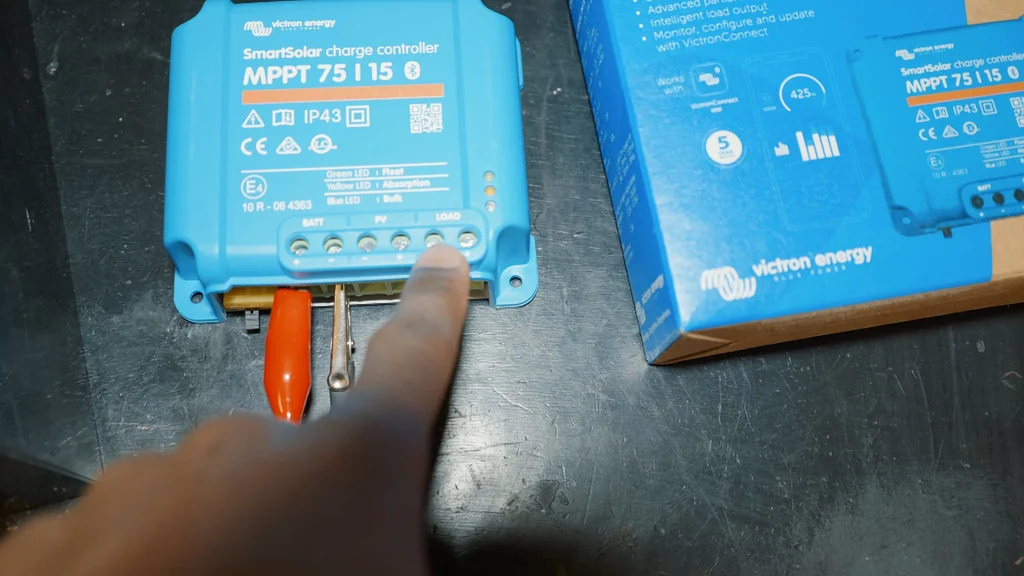
The Victron SmartSolar MPPT 75/15 comes ready to go out of the box. Give it a quick look for any shipping damage. The terminals are clearly labeled — battery, solar, and load — so you can't really mix them up. Before you start, make sure you've got the right wire gauge and crimp connectors on hand so you're not running to the hardware store mid-install.
Connecting the Battery and Solar Array
Here's the one rule you can't skip: battery first, solar second. The controller needs to see the battery voltage to figure out if you're running 12V or 24V. Once the battery's hooked up, then you wire in the panels. Use proper crimped lugs or ferrules — a loose connection here means resistance, heat, and wasted power.
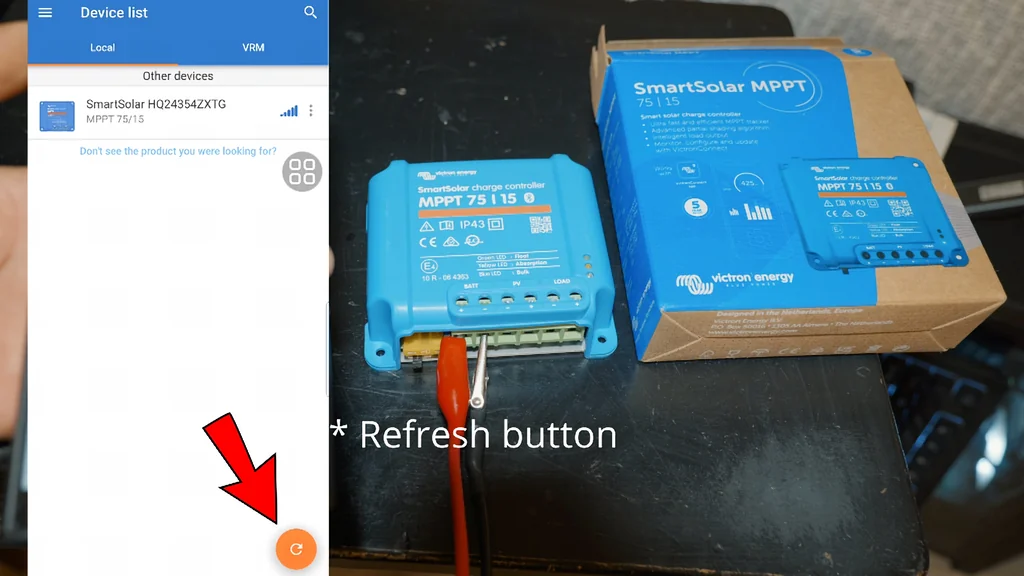
Download the VictronConnect app and make sure Bluetooth is on. The app will scan for nearby devices — when the SmartSolar pops up, tap it to pair. If it asks for a PIN, the default is usually 000000. Once you're in, you've got full control over everything.
Performing a Firmware Update
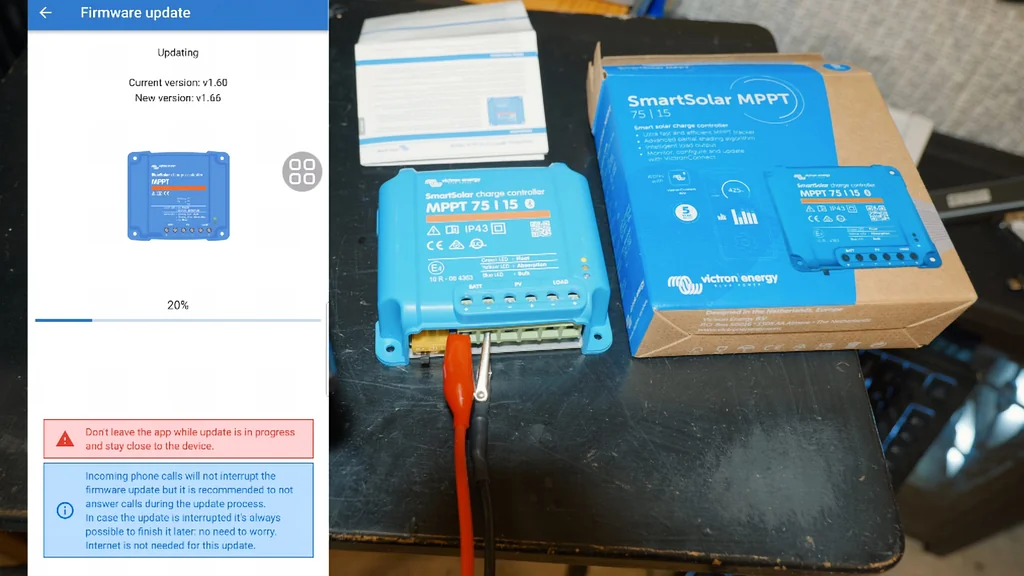
First time connecting, the app will probably tell you there's a firmware update. Do it. These updates fix bugs and add features, so you want the latest version before you start messing with settings. Keep your phone close during the update — if the Bluetooth drops mid-update, you'll have to start over. Wait for the progress bar to finish and the controller to reboot.
Monitoring Solar Status
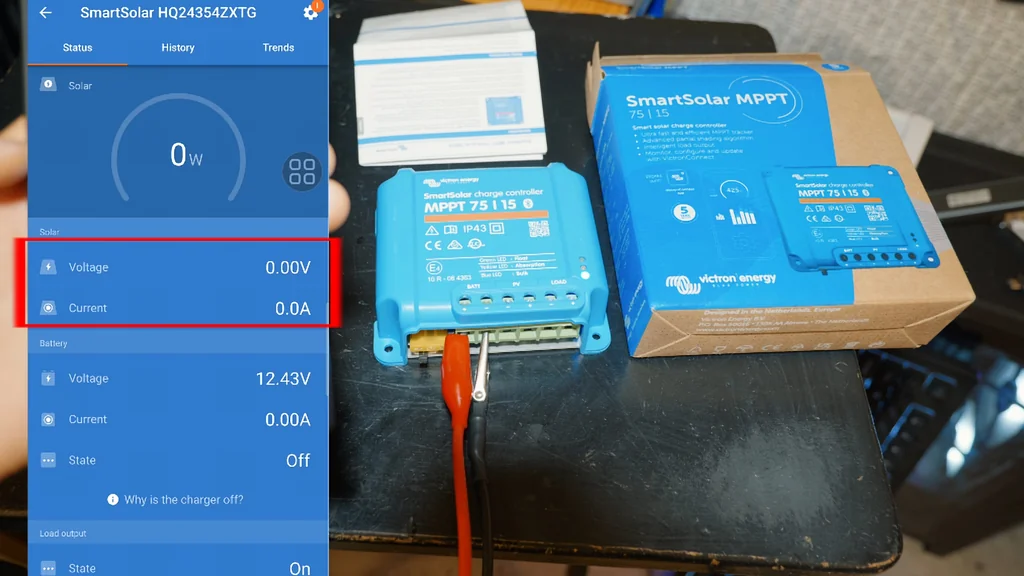
Now you're on the main dashboard and you can see everything live — solar voltage, battery voltage, charging current. This is where you confirm the panels are actually producing and the controller is doing its job. If you see zeros, something's not connected right.
Testing the Load Output
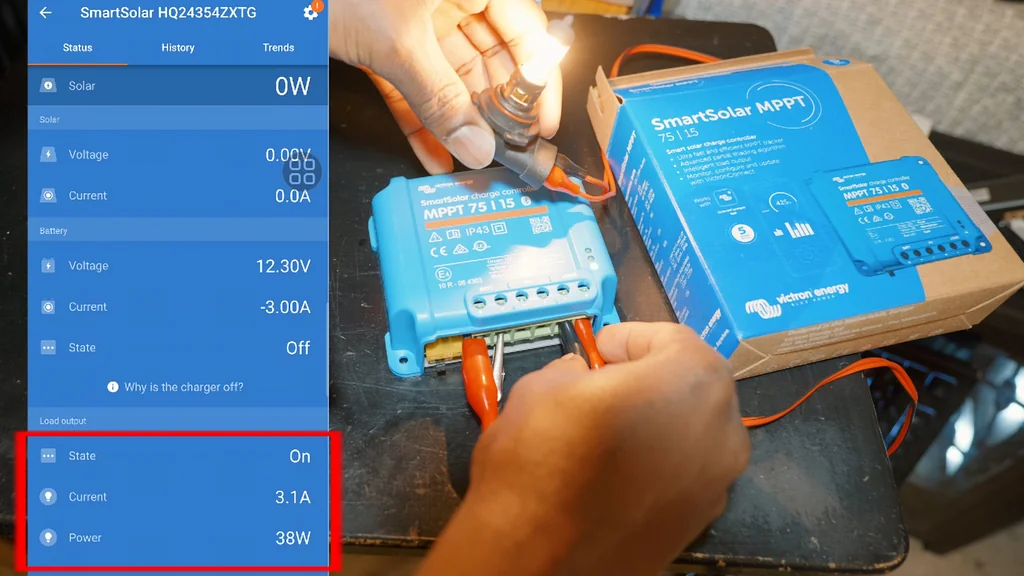
The controller has a load output for small 12V stuff like lights. Test it by hooking up a light bulb and using the app to switch the load on and off. This confirms the internal relay works and your wiring to the load terminal is solid.
Configuring Battery Parameters
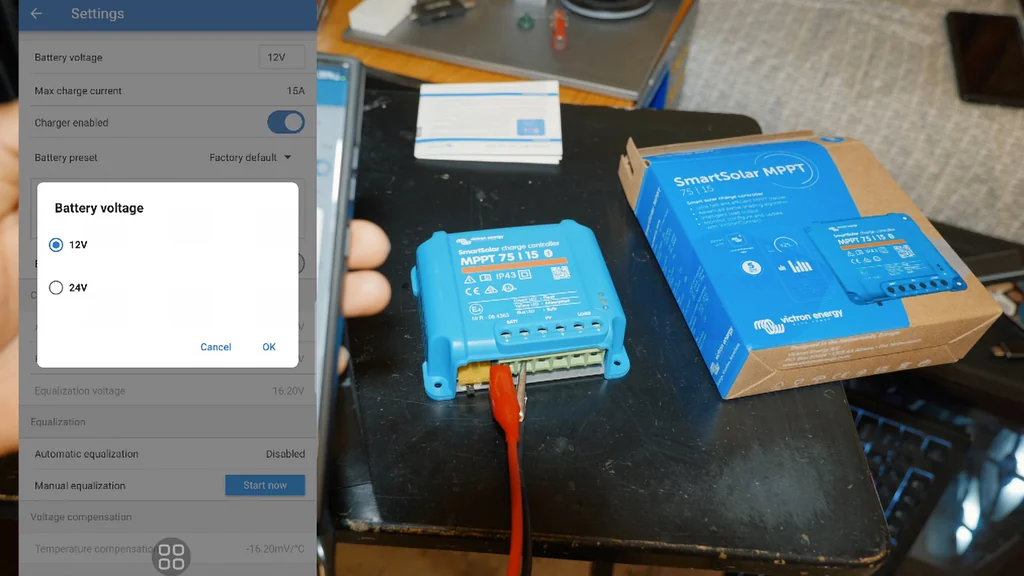
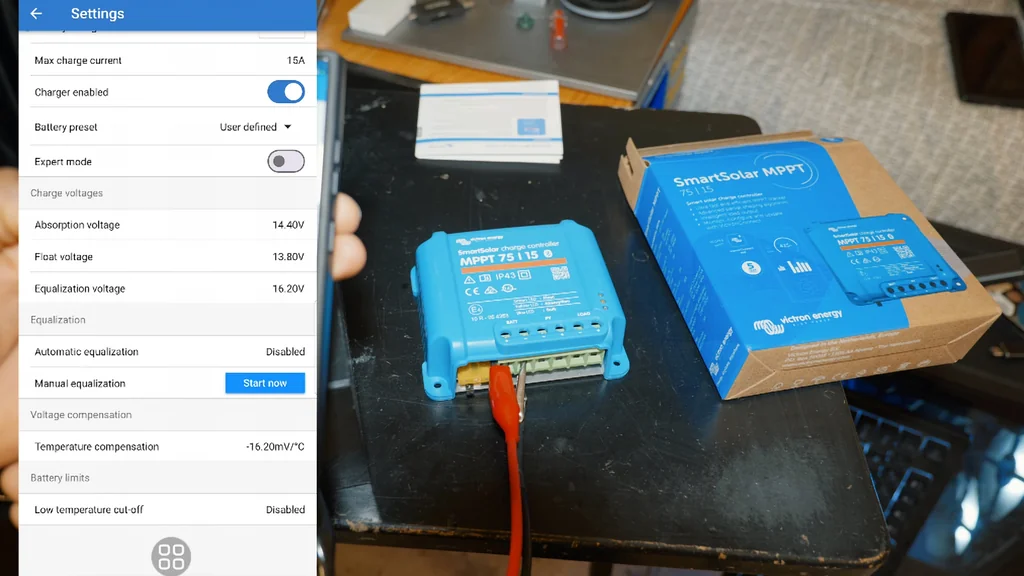
Head into settings and pick your battery type — lead-acid, AGM, LiFePO4, whatever you're running. This is crucial because the controller adjusts its charging algorithm based on this setting. Get it wrong and you'll cook your batteries or undercharge them. Take the time to get this right.
Accessing Expert Mode
If you know what you're doing, there's an Expert Mode for fine-tuning voltages and time limits. But honestly, don't mess with this unless your battery manufacturer gave you specific numbers. Wrong settings here will shorten your battery life fast.
Updating the Bluetooth Interface
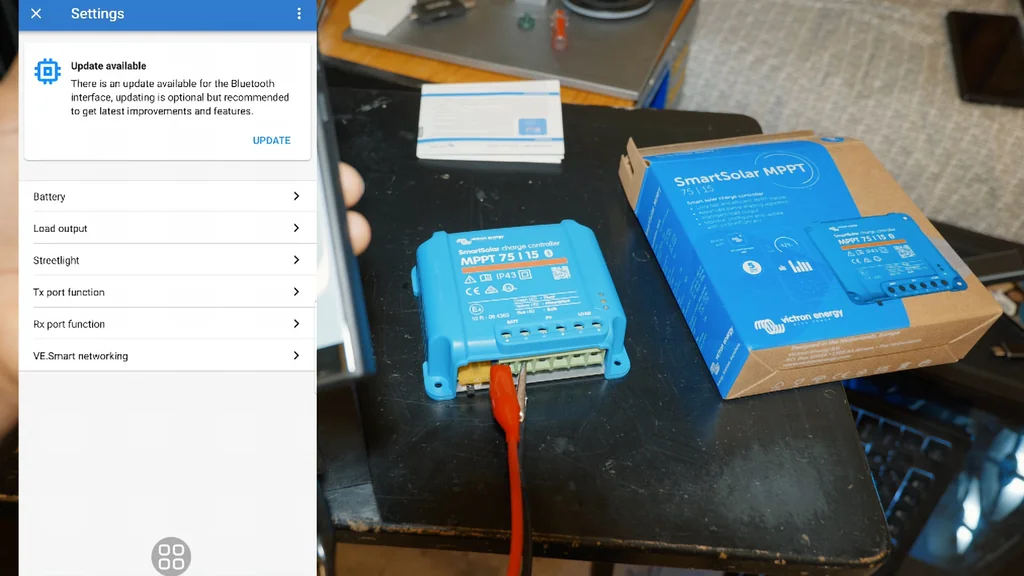
Sometimes the Bluetooth module itself needs an update. If the app tells you there's one available, just run it. It keeps the connection between your phone and the controller stable, which matters when you're checking your system remotely.
Analyzing Trends and History
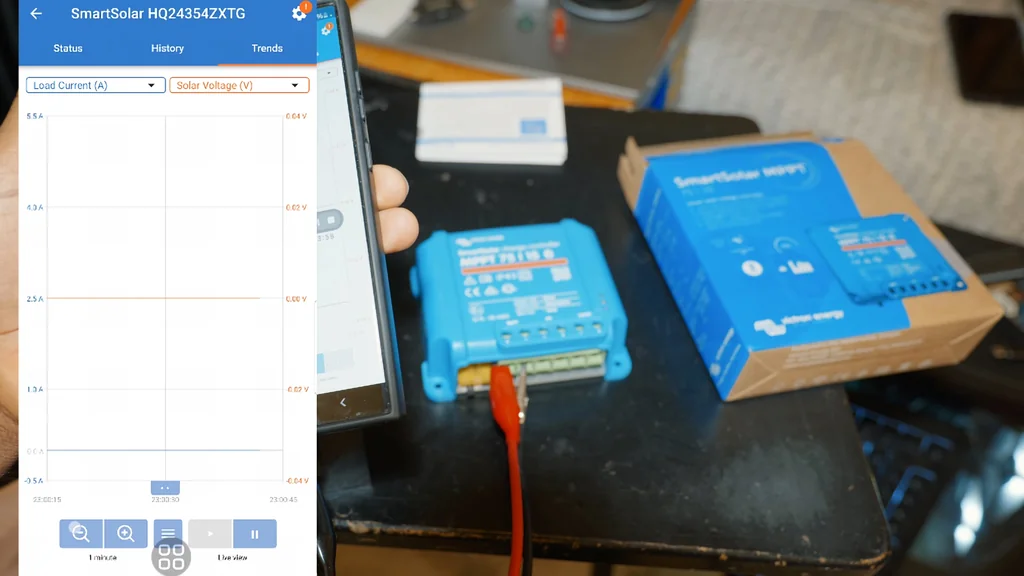
Last thing — check the history tab. The app graphs your solar harvest over time, which is great for spotting issues like shading or a panel that's underperforming. It also helps you understand your energy usage patterns so you can plan better.
⚠️ CAUTION: SAFETY WARNING!
Disconnect the solar panels before messing with any wiring. And make sure your battery bank is fused properly — a short circuit without a fuse is how fires start.
Summary & Tips
The Victron SmartSolar setup is pretty painless once you follow the right connection order and get the app dialed in. The app gives you full visibility into what your system's doing, which is honestly the best part. Set your battery parameters correctly and check the trends occasionally, and this thing will keep your batteries happy for years.
📋 FAQ
❓ Do I need to connect the battery before the solar panels?
Yep, always battery first. That's how the controller figures out if you're on 12V or 24V. Skip this and you could damage the unit.
❓ Can I use this controller with lithium batteries?
Absolutely. Just select the right battery profile in the VictronConnect settings and you're good.
❓ What if the app can't find the controller?
Make sure the battery's connected and the controller has power. Then check that Bluetooth's on and you're standing close enough. It's usually something simple.
❓ Is the firmware update really necessary?
Yeah, do it. Updates fix bugs and sometimes add better support for different battery types. It's worth the two minutes.
Disclaimer: I purchased all tools for this guide with my own money to ensure an unbiased review. This post contains affiliate links, meaning I earn a small commission if you make a purchase at no extra cost to you.