When a Dyson V15 Detect battery pack suddenly stops charging after a deep discharge, the BMS often enters a locked state. This guide documents the process of recovering a bricked SV22 battery pack by manually balancing cells and reflashing the BMS firmware using a Raspberry Pi. It’s a technical deep dive into reviving proprietary battery management systems without replacing the entire unit.
⚡ Quick Guide: How to Make It in 5-10 Steps
📋 In This Article
- Technical Specifications & Components
- Tools & Materials Used — what you will need for this project
- Initial Fault Diagnosis
- Cell Balancing and Inspection
- Manual Cell Charging Procedure
- Setting Up the Raspberry Pi Programmer
- Troubleshooting BMS Connection Issues
- Soldering GPIO Programming Wires
- Firmware Compatibility and SV22 Identification
- Preparing the SD Card and ELF Files
- Executing the Flashing Process
- Hardware Limitations and BMS Failure
- Replacing the BMS PCB
- Testing the New PCB Configuration
- Final Verification and Voltage Check
- Cost Analysis of the Repair
- Long-term Maintenance Strategy
- FAQ
📊 Technical Specifications & Components
| Vacuum Model | Dyson V15 Detect |
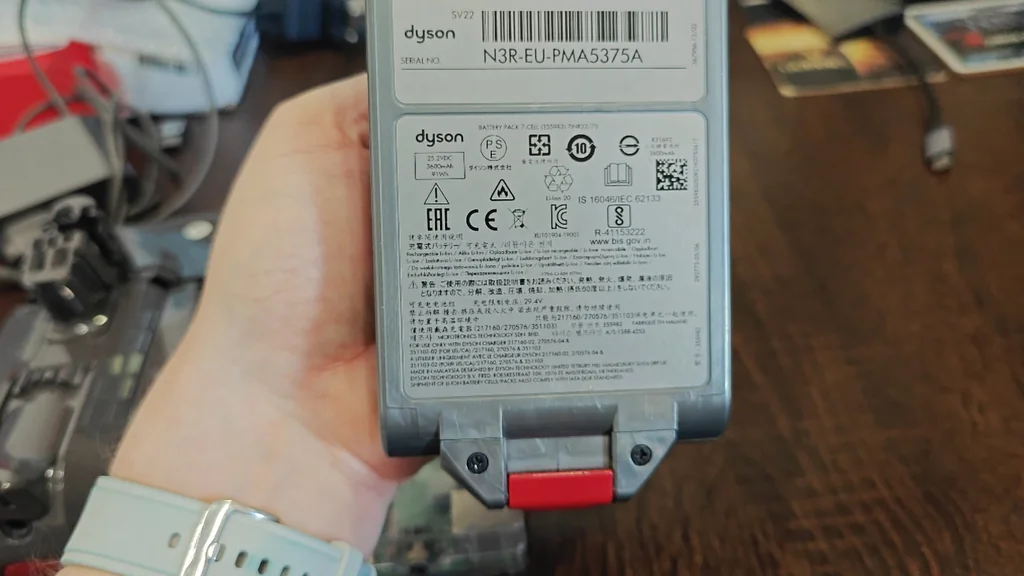
| Battery Article Number | SV22 |
| Cell Configuration | 7-cell series pack |
| BMS PCB Part Number | 867-051-01/04 |
| Programming Interface | Raspberry Pi GPIO |
| Firmware Format | .elf |
| Target Voltage (Manual Charge) | 3.1V - 3.4V per cell |
📊 Project Overview & Costs
🔧 Difficulty Level: Hard
⏱️ Time Investment: DIY: 4-6 hours | Pro: 2 hours
💰 Professional Service Cost: $50 - $100
💡 Verdict: You can save roughly $50-$100 compared to buying a new OEM Dyson battery pack.
🛠️ Tools & Materials Used
• Raspberry Pi 3 Model B+
• Micro HDMI cable
• External Li-ion battery charger
• Programming wires (jumper wires)
Step-by-Step Assembly, Repair, Testing & Inspection
Initial Fault Diagnosis
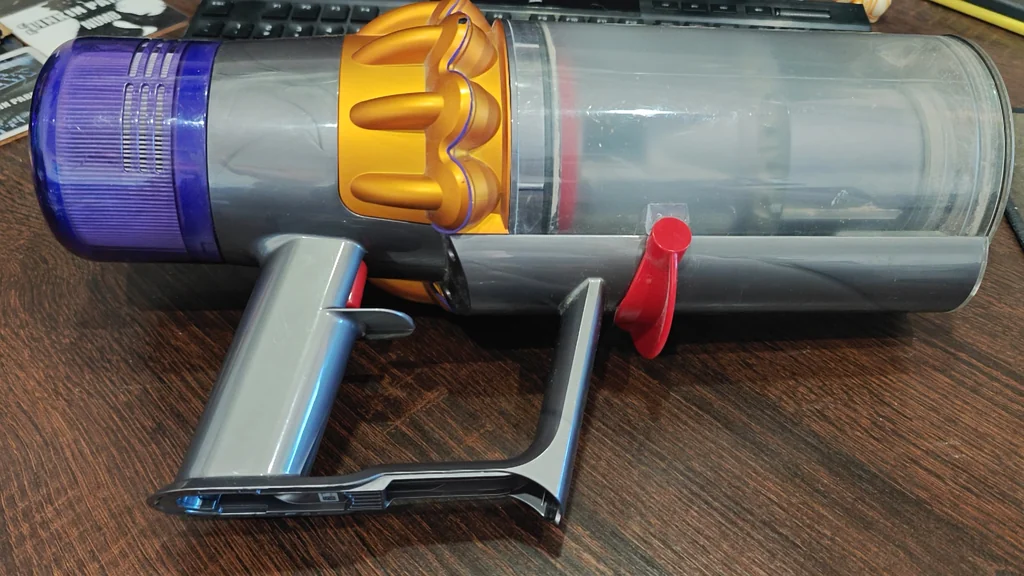
The Dyson V15 Detect battery pack often fails after a deep discharge event. When the voltage drops below a critical threshold, the BMS triggers a lockout. It stops accepting charge. This is a common failure mode. The unit simply turns off and refuses to charge even when connected to the wall adapter.
Cell Balancing and Inspection
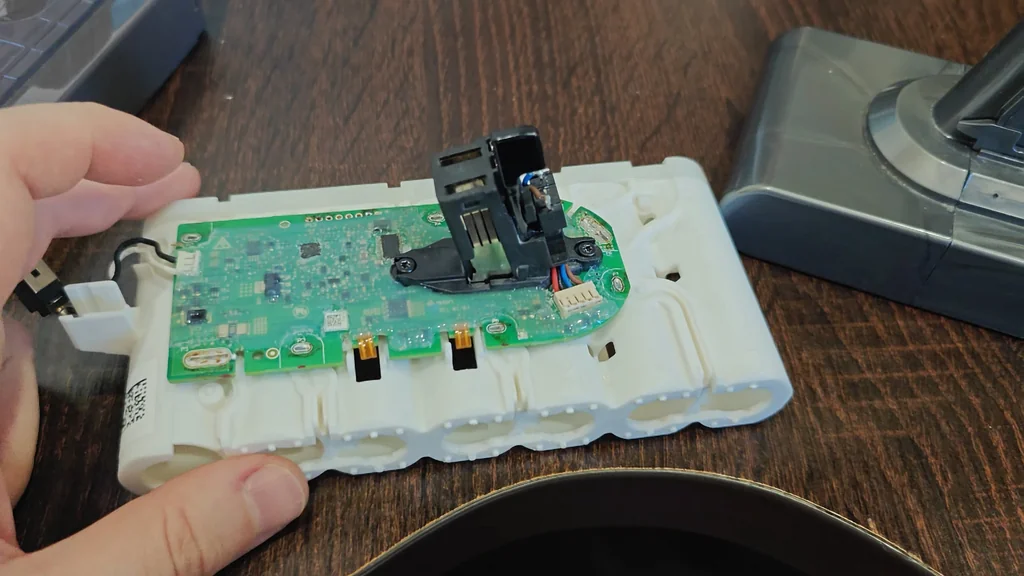
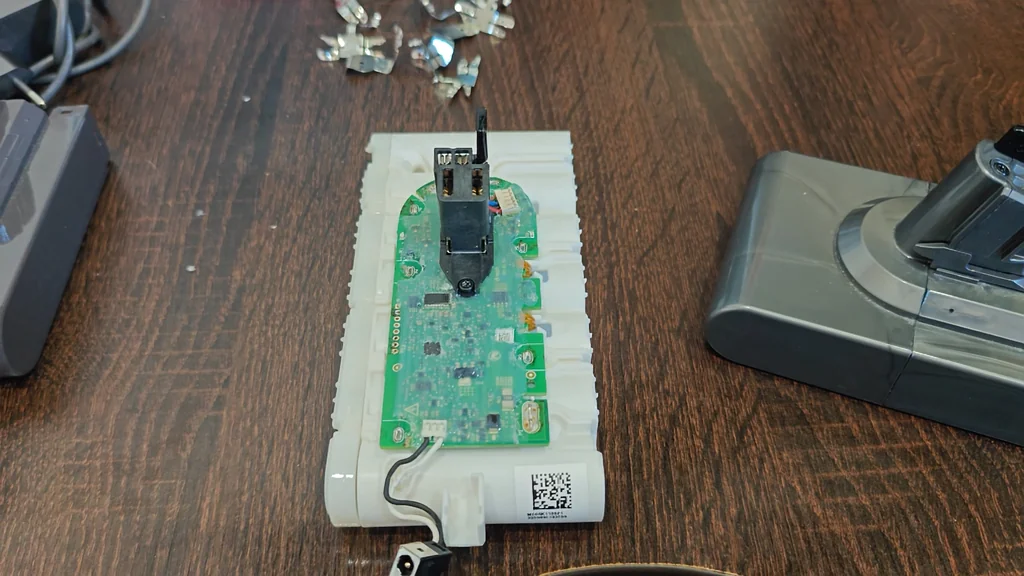
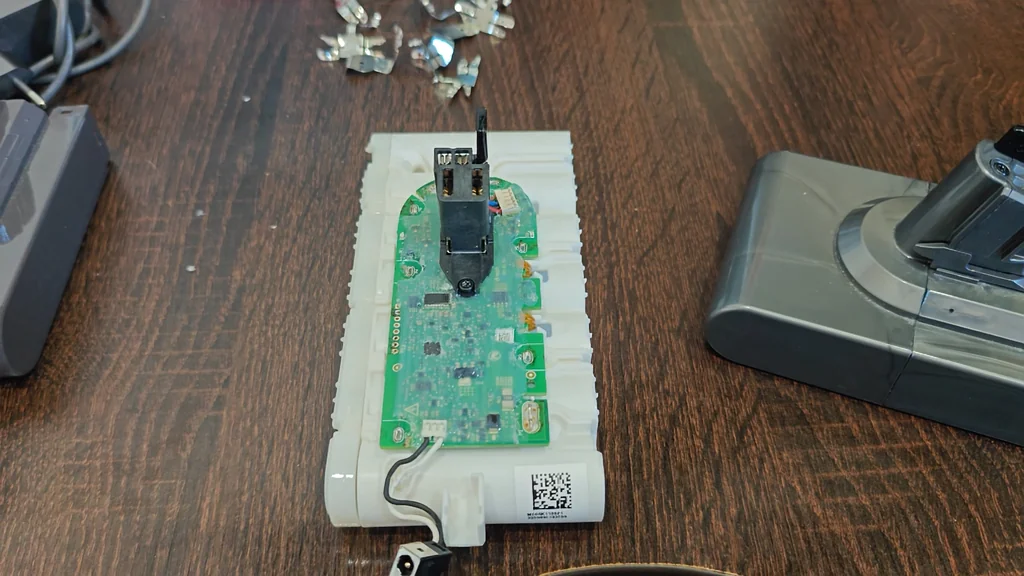
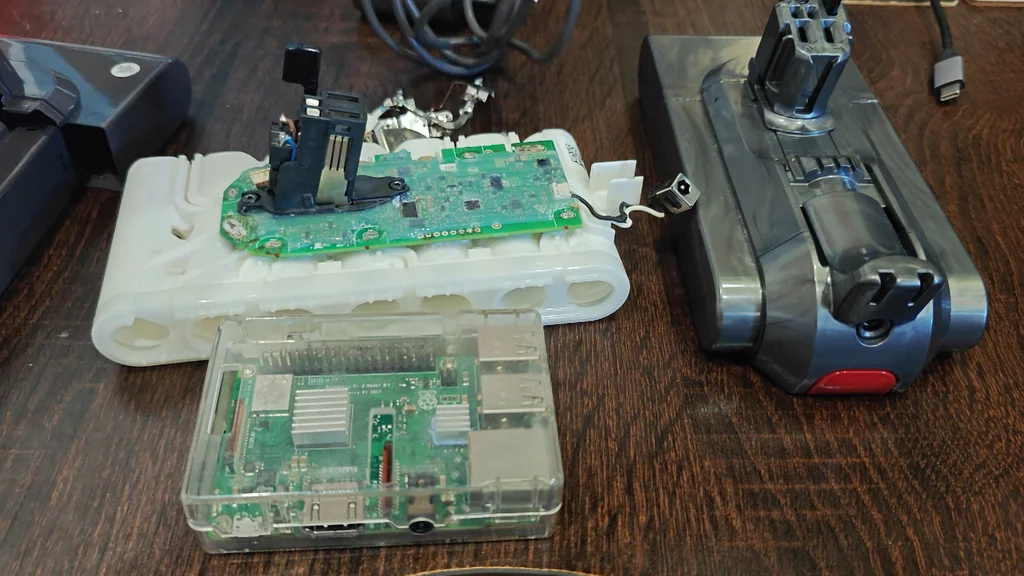
To address the lockout, you must dismantle the battery housing to access the internal cells. There are seven cells inside the pack. We measured the voltage between each pair. The readings confirmed the cells were significantly imbalanced. This imbalance prevents the BMS from initiating a charge cycle. It's a major issue.
Manual Cell Charging Procedure
After opening the shell, we used an external charger to bring each cell to a uniform voltage. We targeted between 3.1V and 3.4V per cell. This step is necessary to clear the low-voltage error state. You must be careful with the connections. Soldering to the pins requires precision. It's delicate work.
Setting Up the Raspberry Pi Programmer
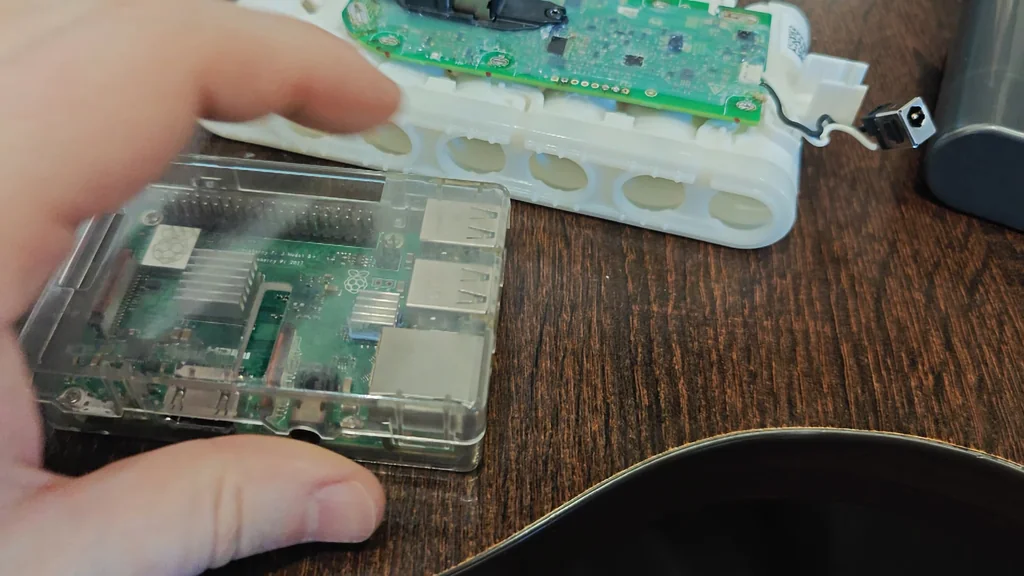
Flashing the BMS requires a specific programmer. While dedicated hardware exists, a Raspberry Pi is a viable alternative. I used a Raspberry Pi 3 Model B+ for this task. It handles the communication with the BMS chip effectively. You don't need extensive experience to make it work. Just follow the documentation. I figured it out using online resources.
Troubleshooting BMS Connection Issues
Initial attempts to communicate with the BMS failed. The system reported no connection to the battery. I tried using ChatGPT to debug the software side, but it didn't resolve the hardware link. It's possible the BMS was already fried. We assumed the worst. The connection remained elusive.
Soldering GPIO Programming Wires
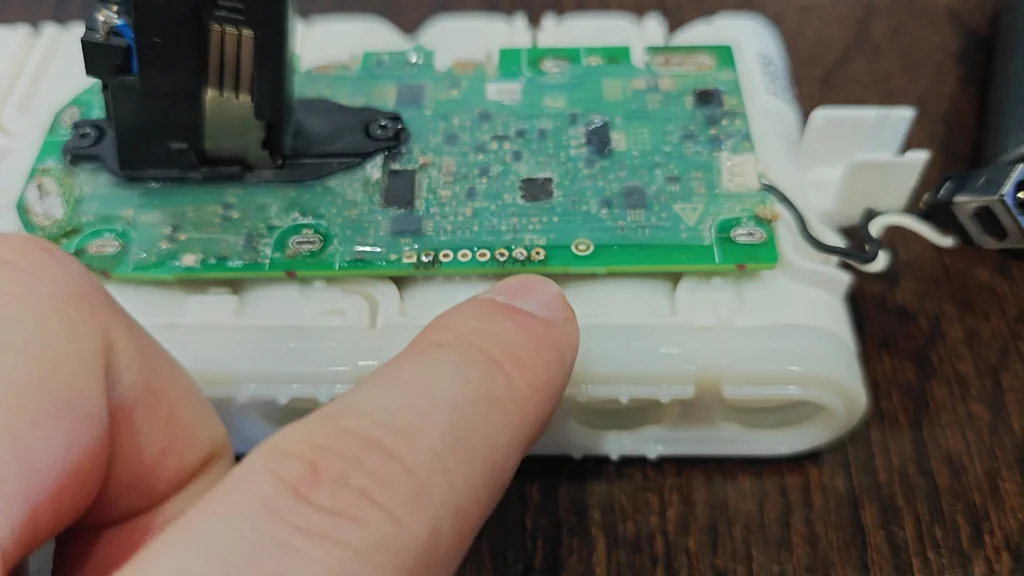
You need to solder wires directly to the PCB test points. Connect the pins into the first three holes and the last but one. These connect to the Raspberry Pi's GPIO header. Use a schematic to ensure correct mapping. Connecting to an HDMI monitor helps observe the flashing process. It's better to see the output.
Firmware Compatibility and SV22 Identification
The firmware image is specific to the Dyson V-series. While the original image was for the V10, the V11 and V15 use the same battery architecture. The SV22 battery is compatible with the V15 model. You must use the correct GitHub repository for the V11/V15 code. It's a critical detail.
Preparing the SD Card and ELF Files
Download the Raspberry Pi image from the GitHub page. Use Balena Etcher to write the image to your SD card. After flashing, replace the default V10.elf file with the V11/V15 version. Rename the new file to V10.elf so the system recognizes it. It's a simple swap.
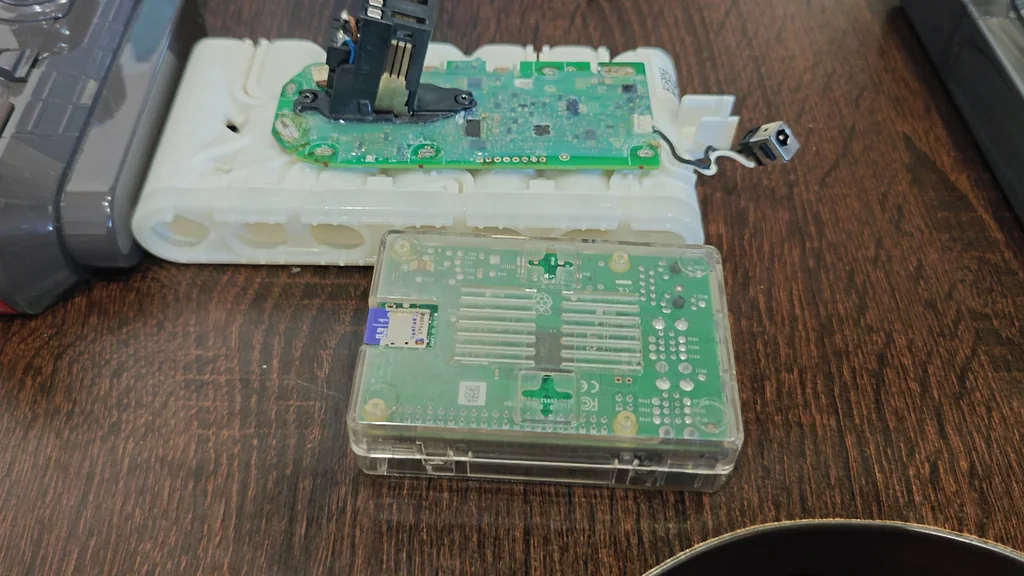
Executing the Flashing Process
Once connected, the Raspberry Pi initiates the flash. You'll see the system reboot a few times. When the text on the screen stops scrolling, the process is complete. It indicates a successful flash. If it says no connection, check your wiring. It's a binary result.
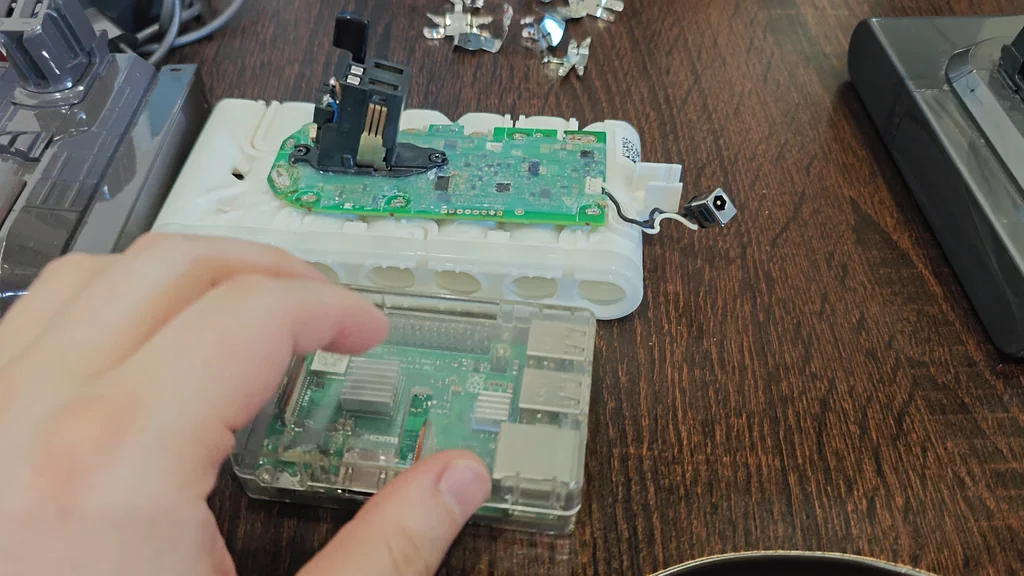
Hardware Limitations and BMS Failure
Even with a new Raspberry Pi 3 Model B+, the original BMS showed the same error. It's likely the PCB was damaged during previous attempts. We had to order a replacement case with a new PCB. The hardware was dead. We had no choice.
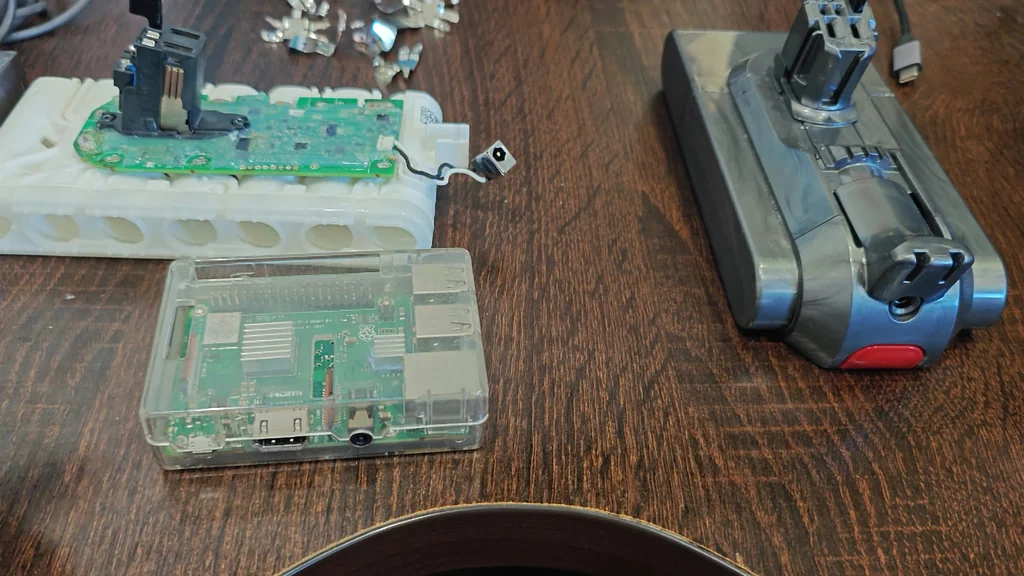
Replacing the BMS PCB
The PCB part number 867-051-01/04 matched our original unit. We swapped the PCB from the new case onto our original battery pack. We unsoldered the seven cell connections carefully. The boards were identical. It was a direct replacement.
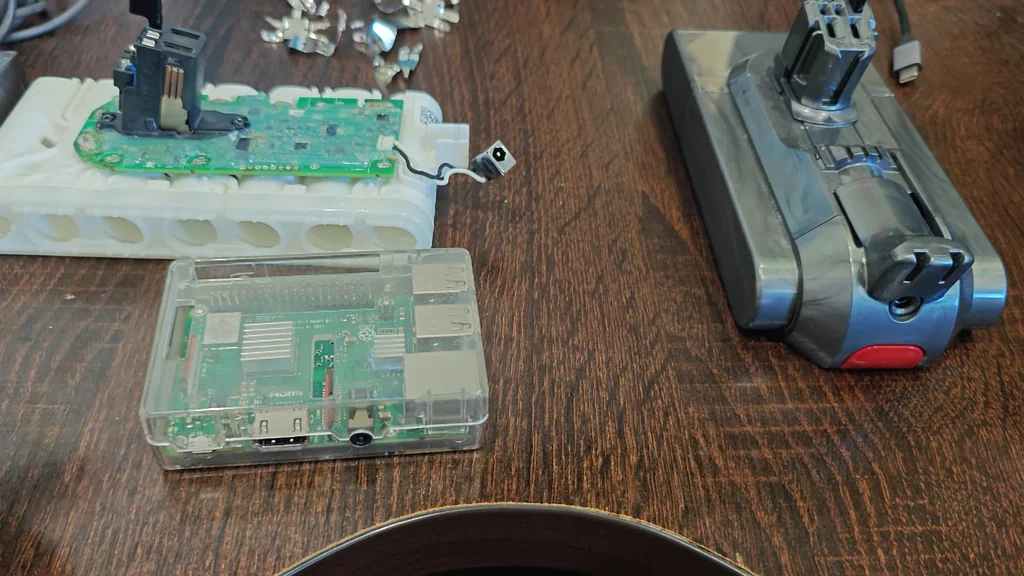
Testing the New PCB Configuration
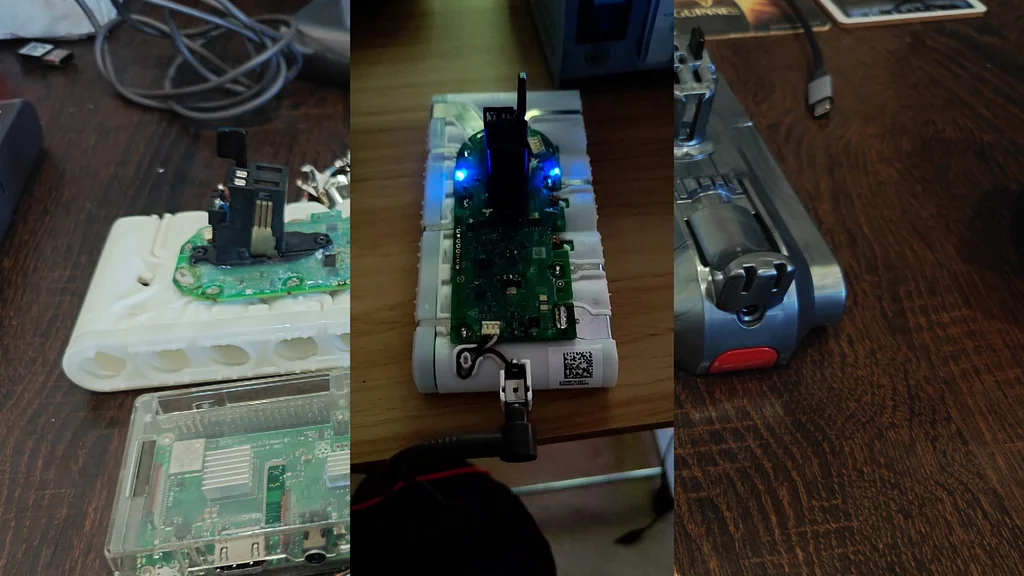
With the new PCB installed, we attempted the flashing process again. This time, it was a total success. The system recognized the battery immediately. We verified the connection on the screen. It finally worked.
Final Verification and Voltage Check
Despite a successful flash, the battery still didn't charge. The LEDs remained dark. We measured the voltages again and found them imbalanced. The previous flashing attempts likely drained the cells unevenly. It's a recurring issue. We need to re-balance.
Cost Analysis of the Repair
The total cost was around $51. This includes the replacement PCB case and the Raspberry Pi. A new OEM battery is over $100. We saved money. It's a practical alternative to buying new.
Long-term Maintenance Strategy
If the batteries die again, I will replace the individual cells. The BMS PCB is now functional. No need to replace the entire pack. We can keep using the same case. It's a sustainable approach.

⚠️ CAUTION: SAFETY WARNING!
Lithium-ion batteries are dangerous if shorted or punctured. Always handle the battery pack with extreme care and avoid creating sparks near the cells.
Summary & Tips
Reviving a Dyson BMS is a complex but rewarding technical challenge. By balancing the cells and flashing the firmware, you can bypass the lockout state. This approach avoids the high cost of a full battery replacement. It's a solid way to extend the life of your vacuum.
📋 FAQ
❓ Can I use any Raspberry Pi for this?
Yeah, most models will work for the flashing process. I used a 3 Model B+ successfully. It's quite flexible.
❓ Why did my battery lock up?
Usually, it happens after a deep discharge. The BMS detects low voltage and triggers a safety lockout. It's a protective feature.
❓ Is it worth repairing the BMS?
Depends on your skill level and budget. If you have the tools, it's cheaper than a new battery. Otherwise, just buy a replacement.
❓ What if the flashing fails?
Honestly, check your wiring first. Poor connections are the most common cause of failure. Re-solder if necessary.
Disclaimer: I purchased all tools for this guide with my own money to ensure an unbiased review. This post contains affiliate links, meaning I earn a small commission if you make a purchase at no extra cost to you.