Constant 3D printing requires reliable hardware. When your Ender 3 Pro starts failing to extrude mid-print, it’s usually a mechanical breakdown rather than a software glitch. This guide walks through diagnosing common extrusion failures, inspecting the hotend, and replacing a cracked plastic extruder assembly with a durable metal upgrade to restore consistent print quality.
⚡ Quick Guide: How to Make It in 5-10 Steps
📋 In This Article
- Technical Specifications & Components
- Tools & Materials Used — what you will need for this project
- Diagnosing Extrusion Failure
- Removing the Hotend Assembly
- Inspecting the Nozzle and PTFE Tube
- Identifying the Extruder Fault
- Replacing the Cracked Extruder
- Preparing the Metal Upgrade
- Removing the Old Drive Gear
- Assembling the New Extruder
- Testing the Final Print
- Final Project Review
- FAQ
📊 Technical Specifications & Components
| Printer Model | Ender 3 Pro |
| Extruder Material | Aluminum (Upgrade) |
| Nozzle Temperature | 200°C |
| Filament Type | Standard PLA |
| Fastener Type | M5 |
| Drive Mechanism | Single Gear |
📊 Project Overview & Costs
🔧 Difficulty Level: Medium
⏱️ Time Investment: DIY: 60-90 minutes | Pro: 30 minutes
💰 Professional Service Cost: $15-$25 for parts
💡 Verdict: Replacing the extruder yourself saves on shipping and service fees while teaching you the machine's core mechanics.
🛠️ Tools & Materials Used
• Wrenches
• M5 Nut and Bolt
• 3D Printed Press Fit Pulley Extractor
• Replacement Metal Extruder Assembly
Step-by-Step Assembly, Repair, Testing & Inspection
Diagnosing Extrusion Failure
After a year of constant use, my Ender 3 Pro began failing during prints. The printer would start fine, but then extrusion would stop entirely, leaving the head moving in thin air. It's frustrating. This uneven extrusion behavior is a classic sign of mechanical failure. I needed to determine if the issue was a hotend clog or a feed problem. I hoped it wasn't something vital.
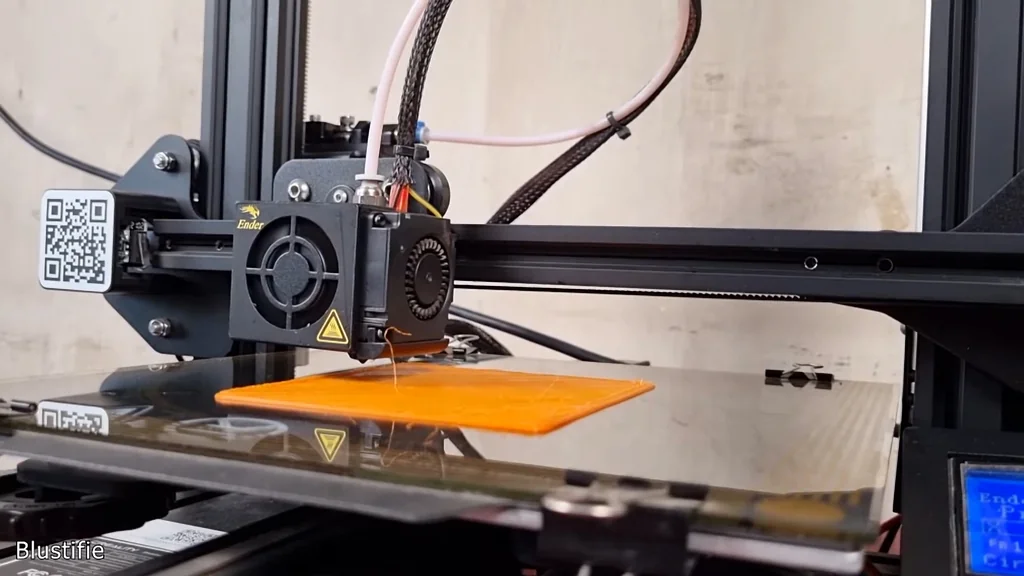
Removing the Hotend Assembly
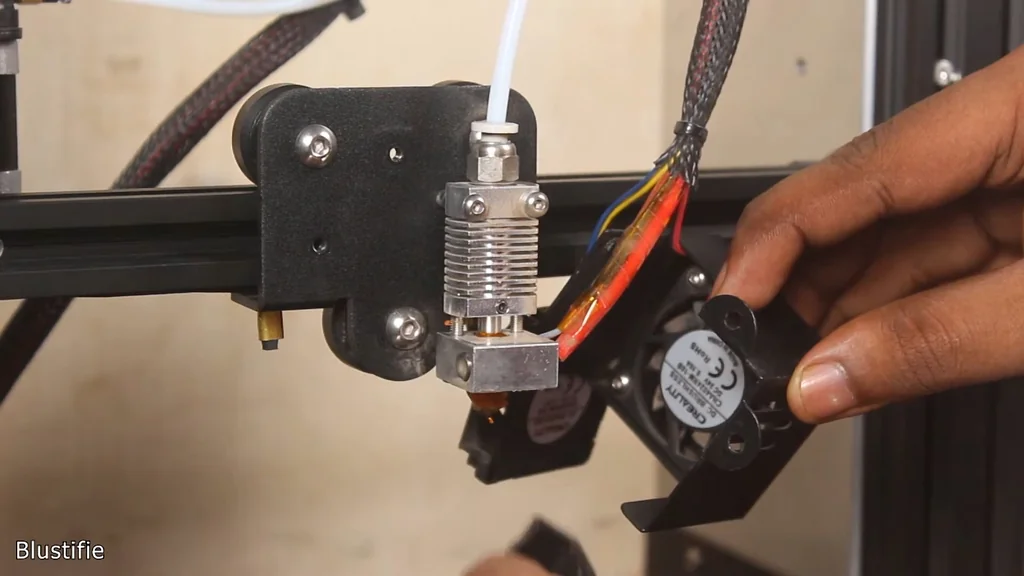
I started by pulling the hotend assembly to check for internal clogs. It's possible the PTFE tube was damaged or obstructed. I unscrewed the cooling fan and removed the two mounting screws holding the assembly in place. I carefully removed the silicone sock from the hotend. Watch your fingers. It stays hot for a long time.
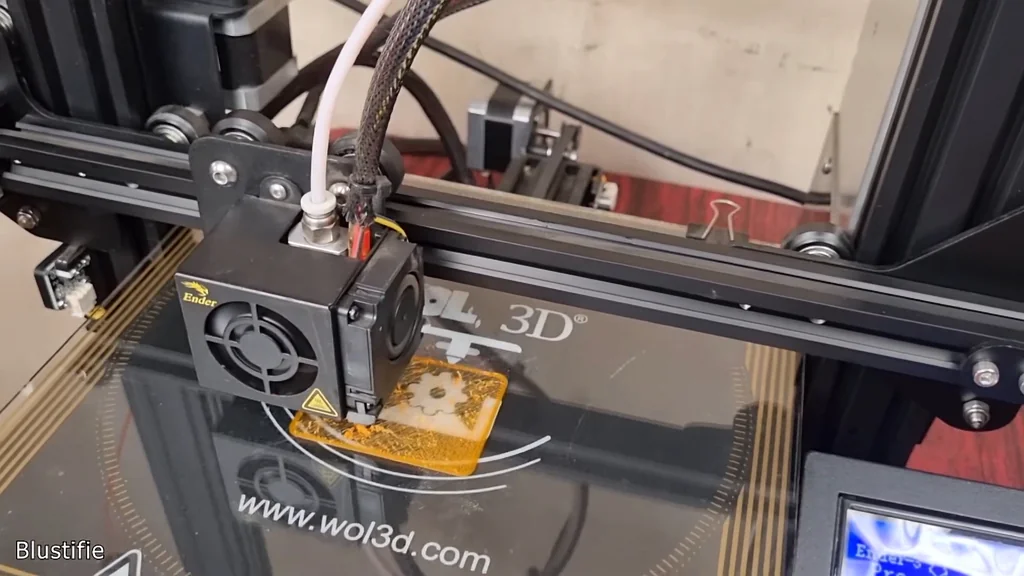
Inspecting the Nozzle and PTFE Tube
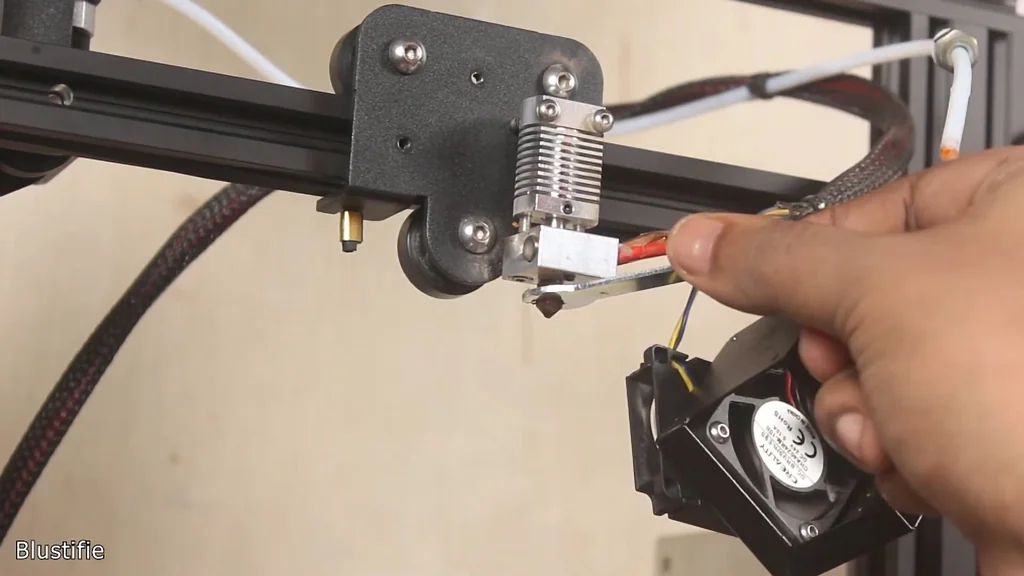
I heated the nozzle to 200°C to facilitate removal with the included wrench. Once removed, I pulled the PTFE tube by loosening the pneumatic nut. I checked both the nozzle and the heating element for debris. Nothing was found. It's clean. The hotend assembly appeared to be in perfect working order, so I reassembled it to run further tests.
Identifying the Extruder Fault
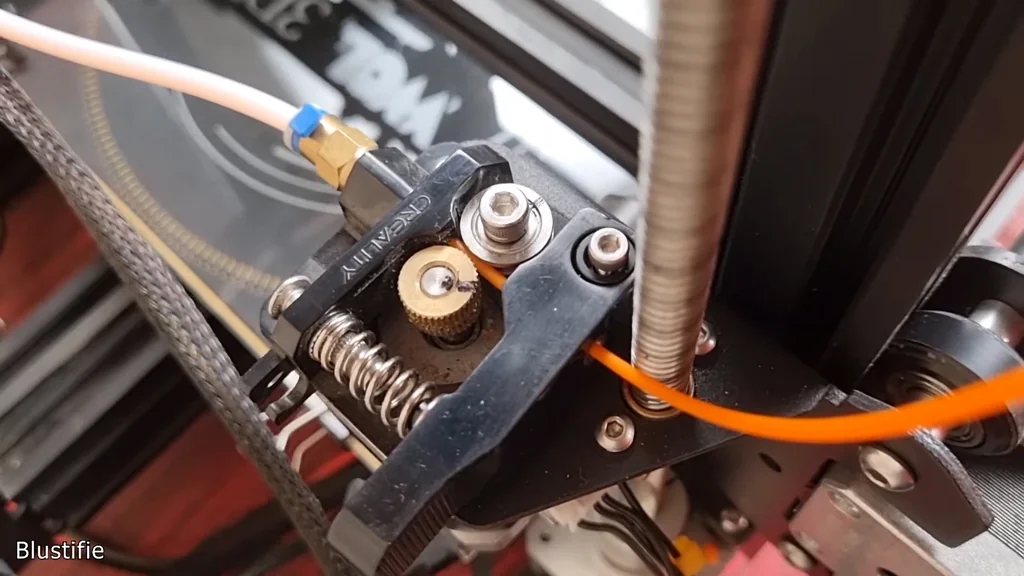
After reassembly, the test print failed again. I pushed the filament by hand and it flowed perfectly from the nozzle. That means the hotend is fine. Suddenly, I noticed the extruder bearing wasn't rotating while the drive gear turned. I marked both parts to confirm the slip. The extruder is definitely the culprit. Something is wrong here.
Replacing the Cracked Extruder
I tried tightening the bearing, but it was already secure. Removing the bearing revealed the truth. The plastic arm was cracked, preventing enough pressure to grip the filament. It's broken. I decided to replace the entire plastic assembly with a metal extruder. Metal won't crack under the same tension. It's a much more reliable solution.
Preparing the Metal Upgrade
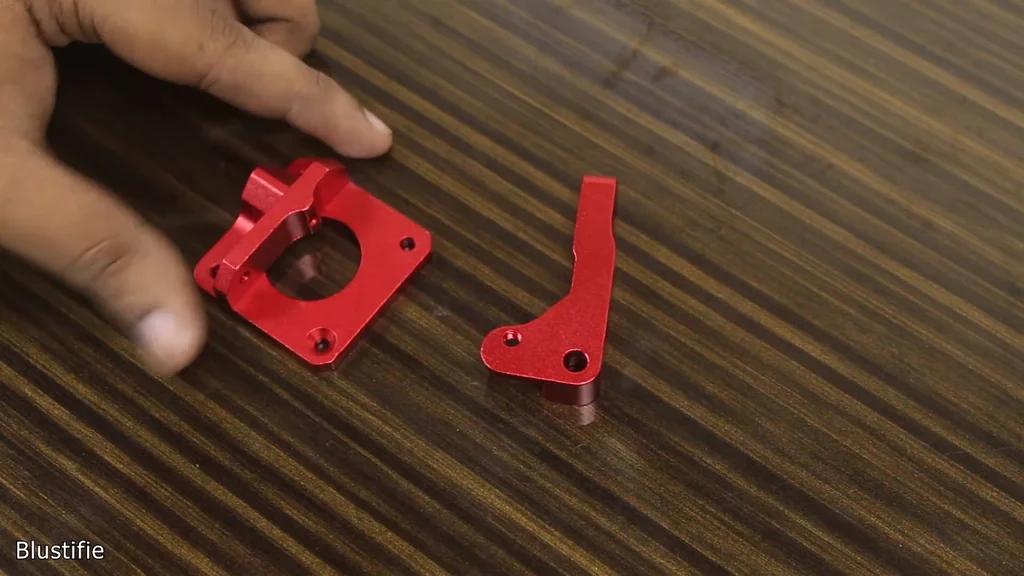
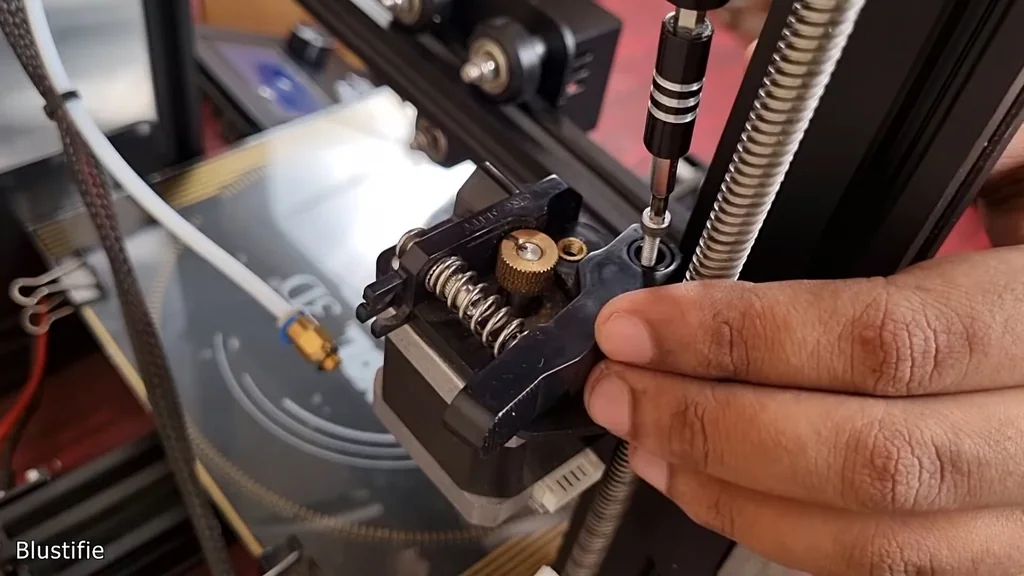
The new kit includes the aluminum body, drive gear, and spring. I verified all the mounting holes before installation. It's a good idea to pre-install the two spring screws now. Doing it later is a pain. I disconnected the motor cable and removed the old extruder assembly, taking care to save the existing hardware.
Removing the Old Drive Gear
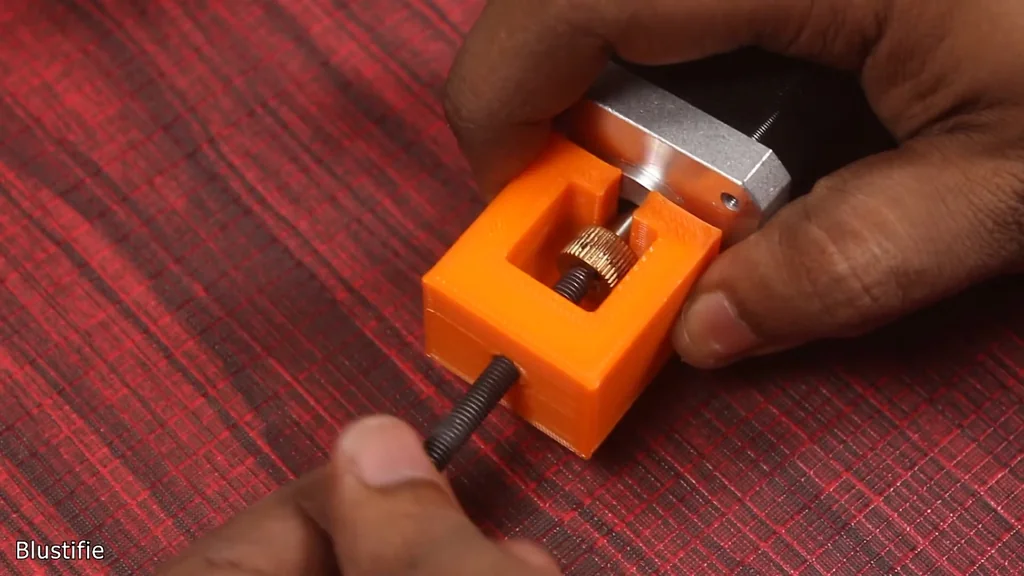
I unscrewed the motor from the frame to access the drive gear. The gear was stuck tight. It won't come off by hand. I found a press-fit pulley extractor design on Thingiverse to print later. With an M5 nut and bolt, that tool makes removal easy. I'll need to print that part to finish the job properly.
Assembling the New Extruder
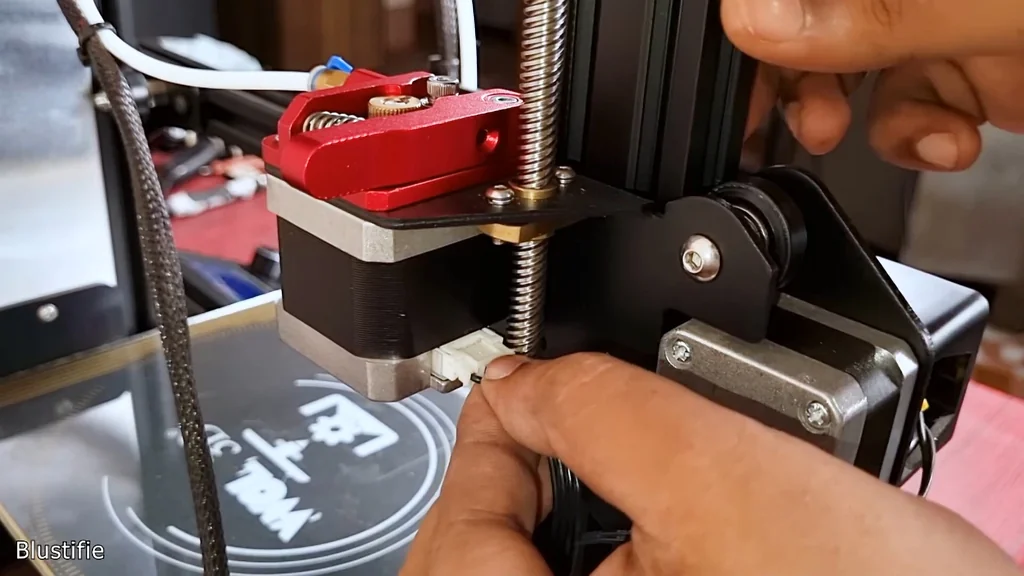
Assembly is straightforward once the motor is held in place. I aligned the new metal part and secured it with the provided screws. I inserted the spring and tightened the tension screw. Then, I attached the bearing assembly and reconnected the PTFE tube. We are almost done. Everything feels solid now.
Testing the Final Print
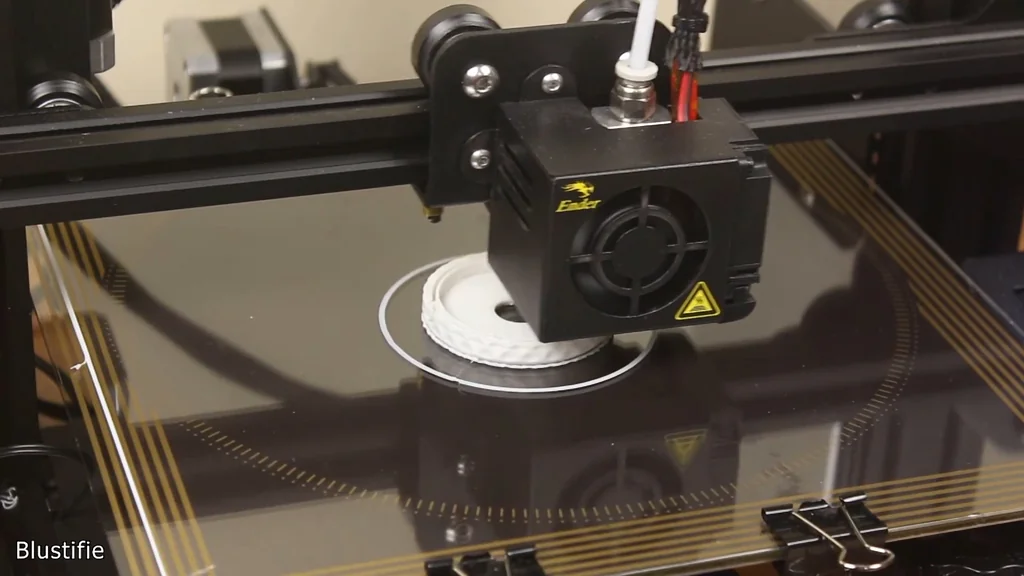
I reconnected the motor cable and loaded the filament at 200°C. I printed a lid for a box to test the feed. It worked perfectly. No gaps, no extrusion issues. The print quality is noticeably better with the metal extruder. The problem is solved. I've printed several items since, and they all look great.
Final Project Review
This project covered the most common failure points for FDM printers. I hope you learned something useful for your own repairs. It's a common issue. If you found this guide helpful, don't forget to like and subscribe for future updates. Thanks for watching.
⚠️ CAUTION: SAFETY WARNING!
Always allow the hotend to cool completely before attempting disassembly to avoid severe burns. Ensure the printer is powered off before disconnecting any motor cables.
Summary & Tips
The metal extruder upgrade effectively resolved the inconsistent extrusion issues caused by the cracked plastic arm. Mechanical failures like this are common in high-use 3D printers. Replacing the faulty component with a more durable material ensures better long-term performance. You now have the knowledge to diagnose and fix similar feed problems on your own machine.
📋 FAQ
❓ Why did my 3D printer stop extruding mid-print?
Usually, it's a mechanical issue. Check for a cracked extruder arm or a clog in the hotend. It happens often.
❓ Is a metal extruder better than plastic?
Yes, it's much better. Metal doesn't fatigue or crack under tension like the stock plastic parts. It's a solid upgrade.
❓ How do I know if my extruder arm is cracked?
Look closely at the plastic arm near the bearing. Sometimes the crack is hidden underneath. You might need to remove it to see.
❓ Can I replace the drive gear easily?
Depends on the fit. Some are press-fit and require a specialized puller tool. Don't force it with pliers.
Disclaimer: I purchased all tools for this guide with my own money to ensure an unbiased review. This post contains affiliate links, meaning I earn a small commission if you make a purchase at no extra cost to you.