Removing the new EcoFlow Stream AC 5000 home battery from its packaging requires handling initial firmware updates, smart meter pairings, and network configurations. This guide covers how to wire the unit, attach a UK 3-pin plug for testing, and enable self-consumption modes without getting caught in excessive software bloat.
⚡ Quick Guide: How to Make It in 14 Steps
- Open the EcoFlow app for setup.
- Bind the smart meter and update firmware.
- Restart and test device connection.
- Select self-powered operating mode.
- Monitor active solar panel generation.
- Adjust AC port output settings.
- Review technical specifications menu.
- Verify excess solar absorption rates.
- Check live power meter metrics.
- Inspect home battery status screen.
- Configure maximum grid output limits.
- Review tariff and rate settings.
- Manage device system integration.
- Complete initial setup routine.
📋 In This Article
- Technical Specifications & Components
- Tools & Materials Used — what you will need for this project
- Initial Setup Using EcoFlow App
- Binding Smart Meter and Updating Firmware
- Firmware Completion and System Reboot
- Selecting Operating Modes
- Monitoring Battery Charging on Excess Solar
- Configuring Hardware and AC Settings
- Reviewing EcoFlow Stream 5000 Specifications
- Analyzing Solar Absorption and Power Flow
- Verifying Smart Meter Data Integration
- Inspecting Battery Metrics in the App
- Adjusting System Limits and Protection Levels
- Navigating Electricity Rates and Peak Shaving
- Managing Device Integration and Zone Assignment
- Concluding Initial Configuration and Testing
- FAQ
📊 Technical Specifications & Components
| Device Model | EcoFlow Stream AC 5000 |
| Initial Firmware Version | 11.2.37 |
| Updated Firmware Version | 11.4.46 |
| Plug-in Power Limit | 800W |
| Hardwired Power Limit | 2500W to 3000W |
| Maximum Grid Input | 2500W |
| Operating Modes | Smart Plus, Self-powered, Custom |
📊 Project Overview & Costs
🔧 Difficulty Level: Easy
⏱️ Time Investment: DIY: 30 minutes | Pro: 15 minutes
💰 Professional Service Cost: $120
💡 Verdict: DIY software configuration saves on basic contractor callout fees.
🛠️ Tools & Materials Used
• EcoFlow Stream AC 5000
• Smartphone with EcoFlow app
• EcoFlow Smart Meter
• UK 3-pin mains plug
Step-by-Step Guide
Initial Setup Using EcoFlow App
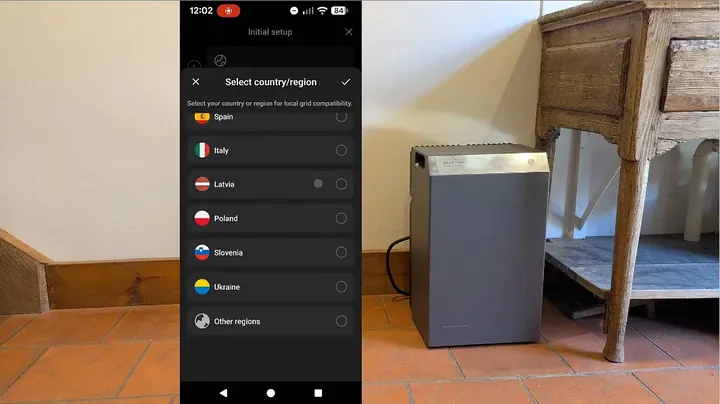
Unboxing the EcoFlow Stream AC 5000 puts you in front of a heavy battery unit that requires a software handshake. I attached a standard UK 3-pin plug to the mains lead to power it up on the bench for a first test. It feels robust. That temporary plug limits me to 800W, but it works fine before a licensed electrician performs the permanent hardwiring. Open the EcoFlow app. The battery detected immediately without scanning codes. I tapped add, finished the network setup, and selected my region. It's fast.

Binding Smart Meter and Updating Firmware
Next, I linked the smart meter to the system. I tapped the bind button to synchronize the EcoFlow Smart Meter. This allows the battery to monitor excess solar output that would otherwise export to the grid. Firmware updates appeared immediately. I started the download. I checked the notes and let it run. It takes about six minutes to finalize, while the display indicates activity during the write process. I updated from 11.2.37 to 11.4.46. It’s done.
Firmware Completion and System Reboot
The update reached 99% before the unit powered down. It reset and restarted in under ten seconds. That's efficient. With the firmware finished, I returned to the dashboard. The operating mode menu is now active. I have the choice between Smart Plus, which learns my consumption, or a manual setup. The help icons provide enough detail to understand how the system logic manages energy. It's clear.

Selecting Operating Modes
I picked the mode that minimizes grid reliance. Self-powered mode uses my own generation first. That fits my setup perfectly. Custom mode handles specific charging windows if you use cheaper night rates. I saved the mode descriptions for my records. I am using self-powered mode to track performance. I confirmed the selection and returned to the main monitoring screen.

Monitoring Battery Charging on Excess Solar
The screen reports 421W of solar generation. The smart meter shows nearly zero grid flow. The battery is successfully capturing the surplus energy instead of exporting it. The state of charge is 28%. The app indicates 158W is moving into the battery to support current loads. It works.

Configuring Hardware and AC Settings
I went into the settings gear. I adjusted the display brightness to save power. The AC port is currently disabled as I focus on AC-coupled storage. X-Boost is there if I need to push past the nominal limits, and UPS features are available. I reviewed the menu to verify the technical details. It has everything.

Reviewing EcoFlow Stream 5000 Specifications
The specs menu details the electrical limits of this AC-coupled unit. Since it lacks direct solar inputs, there are no MPPT terminals here. All inverter ratings and firmware versions are listed in this section. It is organized.

Analyzing Solar Absorption and Power Flow
Solar output is 254W. The meter shows a 2W export, meaning the house load is covered. The battery is charging at 94W. It takes time in cloudy weather, but it works. I can toggle between generation and storage screens to see the flow. It’s all visible.

Verifying Smart Meter Data Integration
Data updates as conditions change. Solar generation shows 88W. The meter confirms a 7W export while the battery absorbs the rest. The system relies on the smart meter for accurate timing, which is better than estimating from the inverter alone. It is well designed.

Inspecting Battery Metrics in the App
The dashboard displays 26% charge, pulling 69W with minimal grid import. The self-consumption loop is stable. I can move to Smart Plus mode later once I have enough usage data. Self-powered mode is simple for now. It works correctly.

Adjusting System Limits and Protection Levels
I can set reserve thresholds and export limits here. The 800W limit is due to the current test plug. Hardwiring will allow 2500W. Grid charging is set to 2500W. Tariff configuration requires attention for specific UK plans, but it is manageable. It’s effective.

Navigating Electricity Rates and Peak Shaving
Rate settings accommodate constant pricing, though complex split tariffs require careful entry. Peak shaving options exist for more advanced management. The interface is detailed. It is worth reading the prompts. It helps.

Managing Device Integration and Zone Assignment
The system menu shows the battery and meter. I labeled mine 'garden solar panel' for clarity. Notifications and zones are managed here. The UI keeps the energy network status visible without cluttering the display. It is well organized.

Concluding Initial Configuration and Testing
That concludes the initial setup for the EcoFlow Stream AC 5000. If this guide helped you, like the video. I will release a full performance review after using the battery for a few weeks. Check my channel for more electrical guides. Back to work.

⚠️ CAUTION: SAFETY WARNING!
Always isolate mains power and verify local electrical wiring codes before attempting to hardwire high-capacity energy storage systems into a domestic distribution board.
Summary & Tips
Configuring the EcoFlow Stream AC 5000 is straightforward with the app. Temporary plugs assist with software updates, but hardwiring remains necessary for full output. Smart meter binding is required for efficient self-consumption. Monitor firmware versions as the system stabilizes.
📋 FAQ
❓ Can I use a standard 3-pin plug permanently?
No, standard plugs restrict output to 800W. Professional hardwiring is required for the full 2500W capacity.
❓ Does the Stream AC 5000 require direct solar panel inputs?
No, this is an AC-coupled system. It integrates with existing AC power and uses smart meter data rather than direct DC solar connections.
❓ How long does the initial firmware update take?
Expect a six-minute update period. The unit reboots automatically in approximately ten seconds.
❓ What operating mode should I choose first?
Self-powered mode is recommended for immediate solar capture. Smart Plus mode is an alternative once system learning completes.
❓ Why is my grid export showing near zero?
This indicates the system is correctly absorbing excess solar energy for battery charging.
Disclaimer: I purchased all tools for this guide with my own money to ensure an unbiased review. This post contains affiliate links, meaning I earn a small commission if you make a purchase at no extra cost to you.