3D print quality often degrades due to software settings rather than mechanical failure. Firmware updates can silently alter your printer’s behavior, leading to common issues like warping and inconsistent extrusion. Understanding the difference between a mechanical hardware problem and a software configuration error is the first step toward restoring print accuracy. This guide breaks down how to diagnose and calibrate your machine for consistent, high-quality output.
⚡ Quick Guide: How to Fix 3D Printing Defects
- Clean your build plate thoroughly with isopropyl alcohol.
- Use adhesive glue if warping persists on your build surface.
- Identify underextrusion by checking for gaps between print layers.
- Perform a Flow Dynamics calibration to adjust the K-value.
- Save your calibrated settings as a specific filament preset.
📋 In This Article
- Technical Specifications & Components
- Tools & Materials Used — what you will need for this project
- Diagnosing Print Warping
- Applying Build Plate Adhesive
- Cleaning the Build Surface
- Understanding the K-Value
- Navigating Calibration Menus
- Selecting Filament Presets
- Analyzing Test Print Lines
- Utilizing Pattern Calibration
- Applying Final K-Values
- Troubleshooting Calibration Errors
- FAQ
📊 Technical Specifications & Components
| Printer Model | Bambu Lab P1S |
| Filament Type | ABS (Acrylonitrile Butadiene Styrene) |
| Calibration Type | Flow Dynamics (Pressure Advance) |
| Calibration Method | Pattern / Line |
| Expected K-Value Range | 0.000 to 0.050 (Typical ABS: 0.020 – 0.040) |
| Primary Failure Mode | Underextrusion |
📊 Project Overview & Costs
🔧 Difficulty Level: Medium
⏱️ Time Investment: DIY: 45 minutes | Pro: 20 minutes
💰 Professional Service Cost: $0
💡 Verdict: Calibrating your existing hardware saves the cost of unnecessary replacement parts.
🛠️ Tools & Materials Used
• Isopropyl Alcohol
• Adhesive Glue
• Bambu Lab P1S 3D Printer
Step-by-Step Assembly, Repair, Testing & Inspection
Diagnosing Print Warping
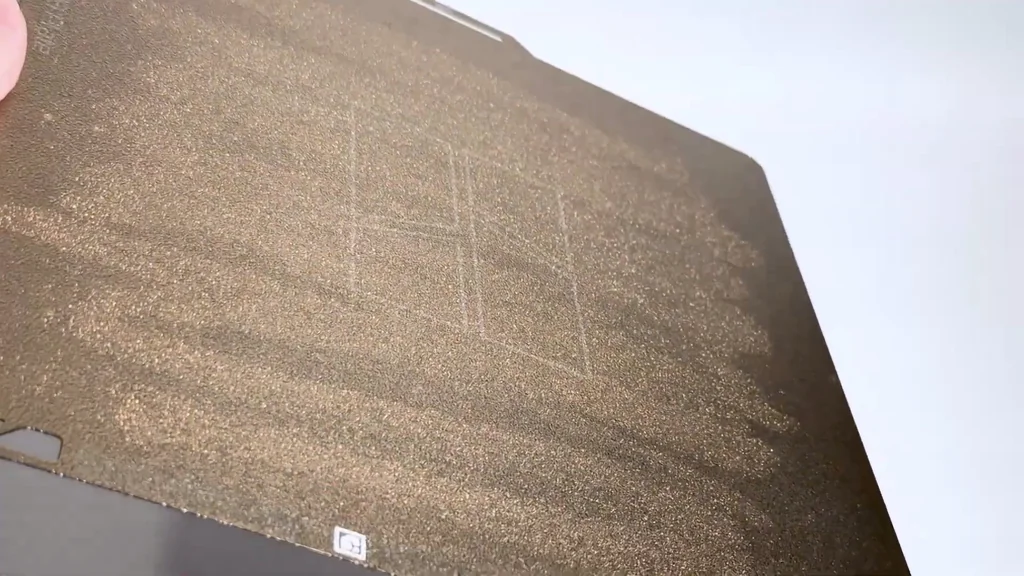
Warping is the most frequent headache in 3D printing. It happens when the bottom layer of your print loses adhesion and pulls away from the build plate. Don't assume your hardware is broken immediately. Software updates often shift your printer's baseline settings without warning. It's a software issue. Check your firmware settings before tearing down any mechanical components.
Applying Build Plate Adhesive
Using a thin layer of glue on your build plate is a simple, effective fix for adhesion. It doesn't ruin your prints or make cleanup difficult. The glue helps the first layer stick firmly to the surface. One application lasts for many print cycles. The Bambu Lab P1S is an enclosed unit, which is necessary for printing ABS filament. ABS requires high heat for stability. It's a durable material.
Cleaning the Build Surface
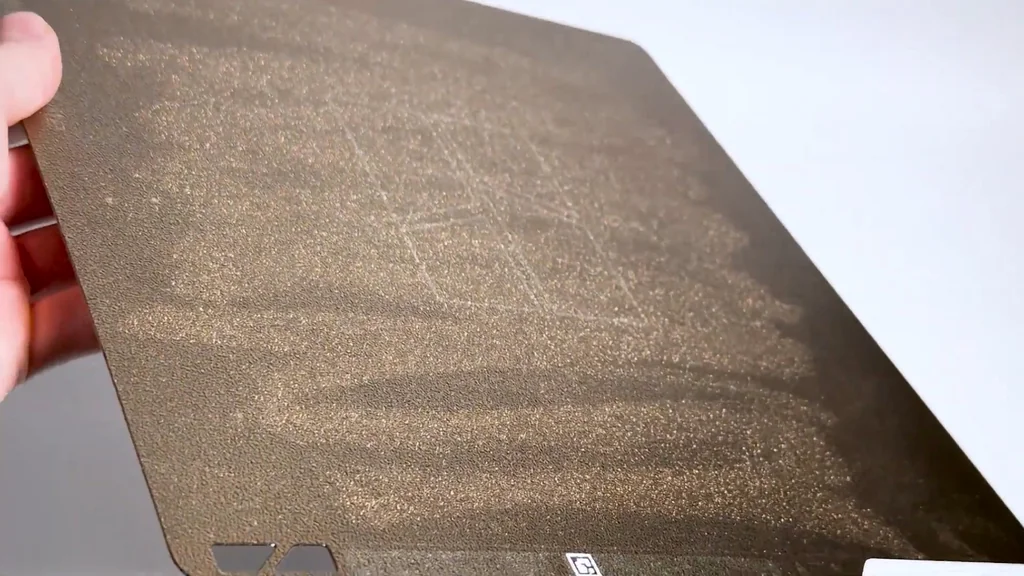
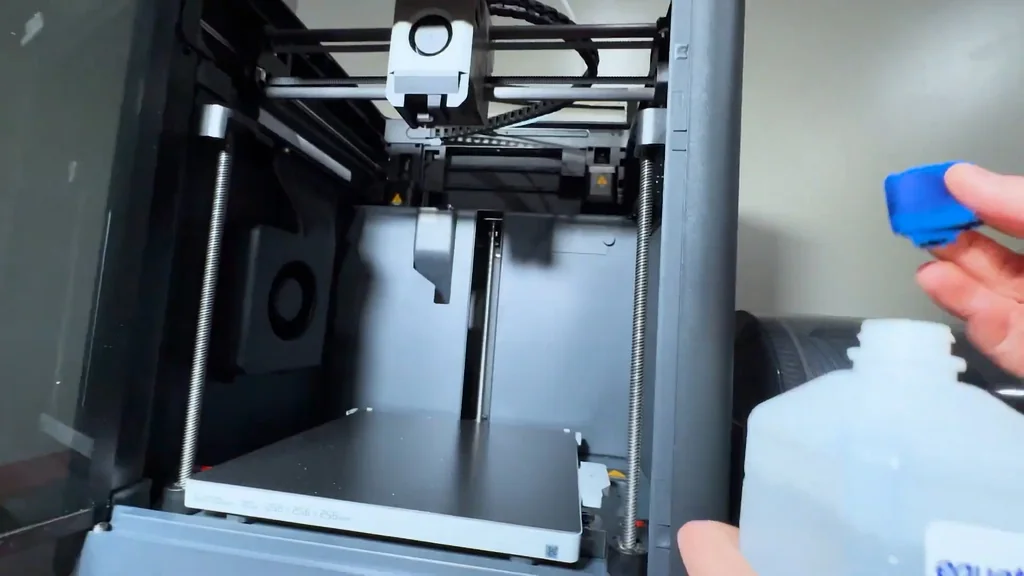
If you aren't using an enclosed printer, you might avoid some of these issues entirely. When problems do arise, start by cleaning the build plate with isopropyl alcohol. This removes oils and debris that prevent proper adhesion. Regular maintenance is key. Check your previous maintenance logs to prevent recurring failures. The next common issue is gaps between print layers. It's underextrusion.
Understanding the K-Value
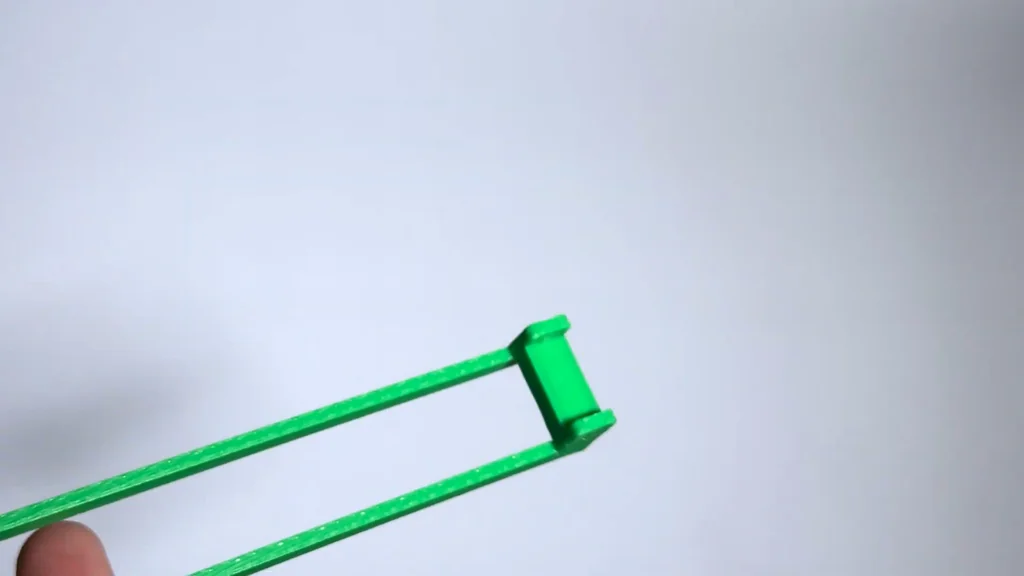
Stringing at the end of a print is a classic sign of flow rate issues. The K-value is a numerical setting representing the filament flow rate compensation factor. It dictates how much plastic the extruder pushes to achieve the correct thickness. My printer was running perfectly until a firmware update. It changed everything. The software update messed with my flow settings, causing inconsistent extrusion patterns. This setting is critical. It determines the physical quality of the final part.
Navigating Calibration Menus
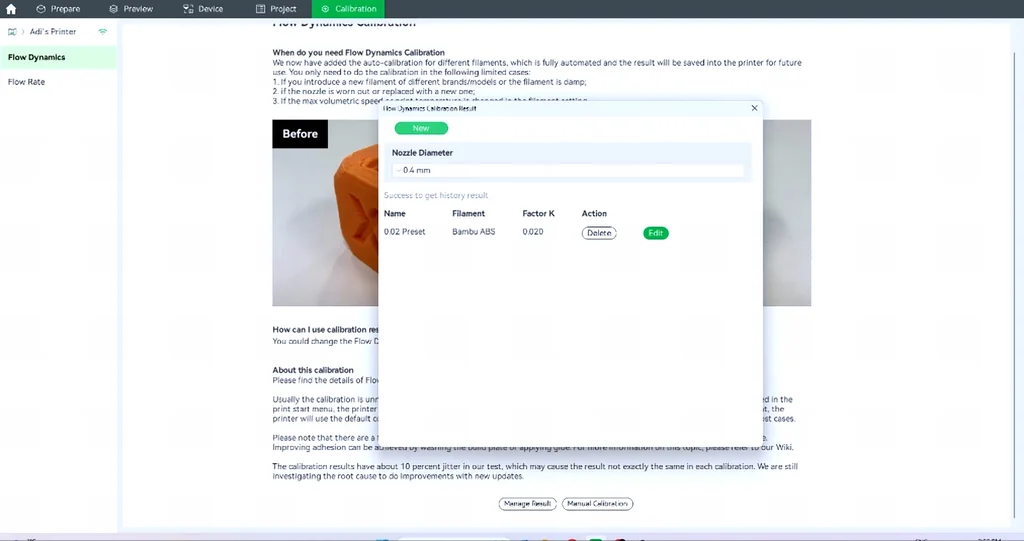
You need to access the calibration menu on your Bambu Lab printer. Select the Flow Dynamics option to begin the process. There is also a Flow Rate setting, but Flow Dynamics is often the culprit for underextrusion. It's a specific menu. Follow the on-screen prompts to start the test. This process effectively resets your machine's flow logic. It's straightforward.
Selecting Filament Presets
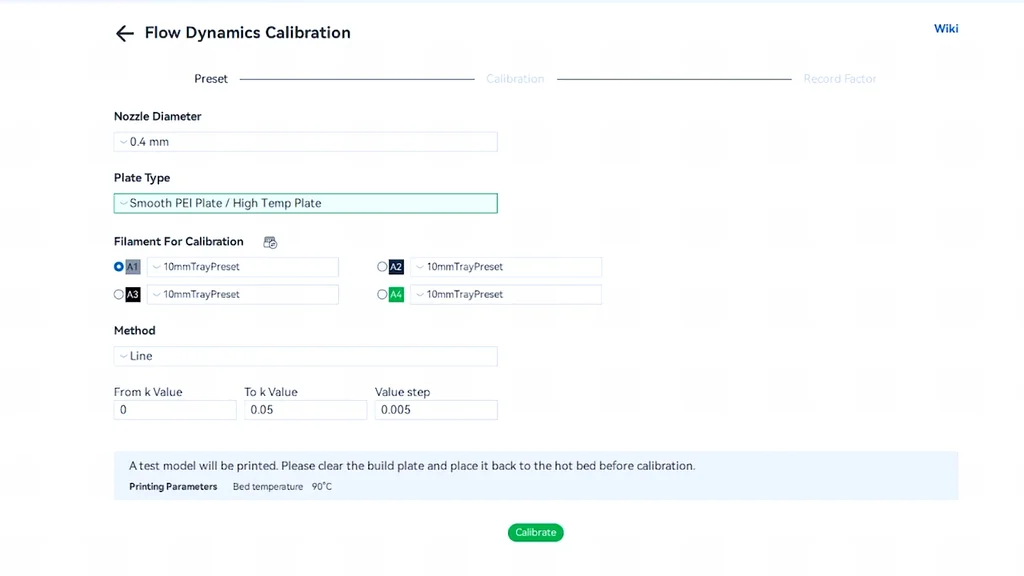
Whether you use a smooth PEI or a textured plate, choosing the right filament profile matters. If you have an AMS unit, apply the test to every filament type you use. I use ABS for everything, so I calibrate for that specific material. Don't skip this. Start your K-value at 0 and go up to 0.05. It's a standard range.
Analyzing Test Print Lines
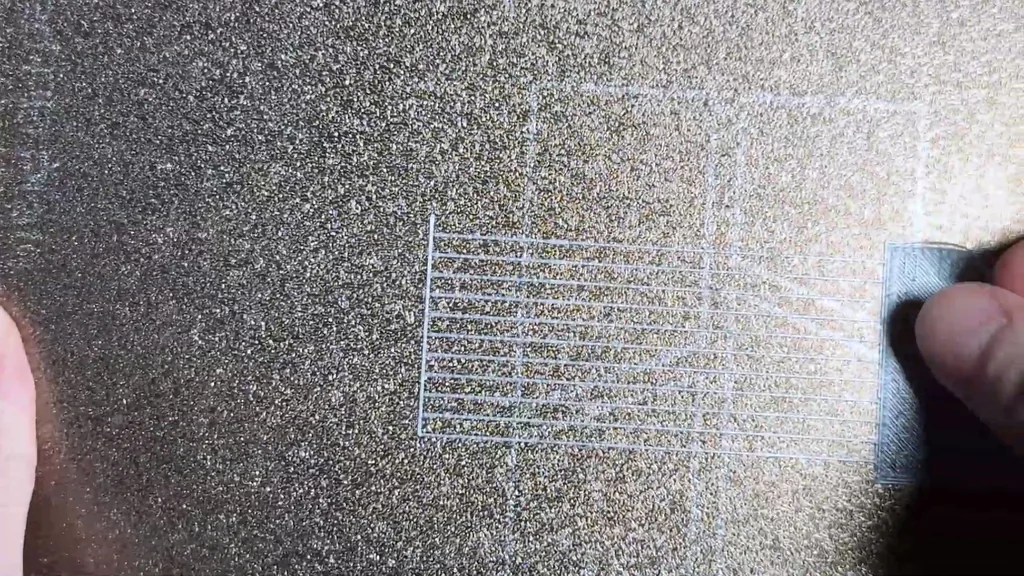
Look closely at the test lines on your build plate. You want a clean, solid, consistent line. Gaps indicate underextrusion, meaning there isn't enough filament being pushed. Stringing is a clear sign of this. Conversely, if the value is too low, you get overextrusion. Too much plastic. The goal is a perfect, uniform line.
Utilizing Pattern Calibration
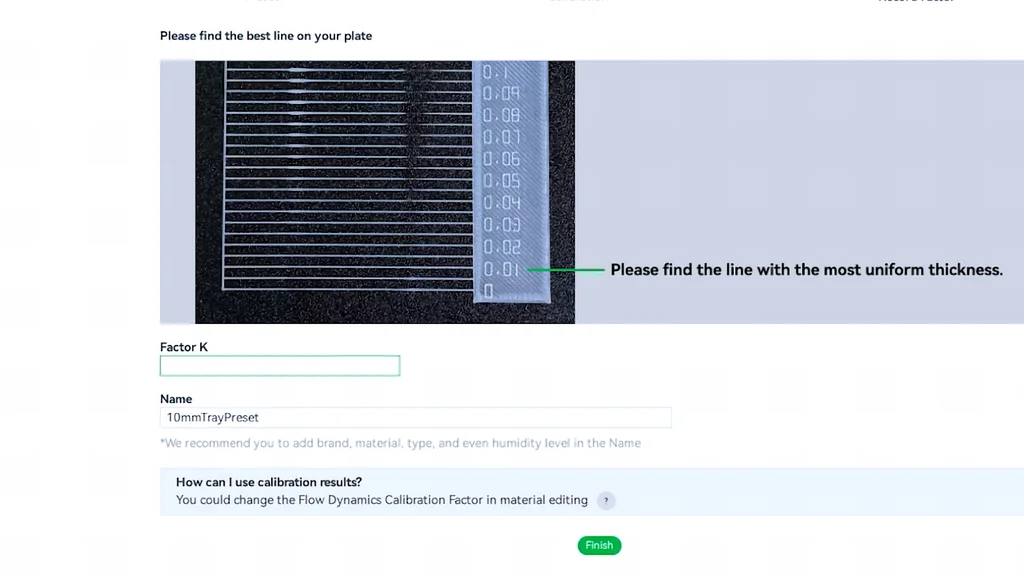
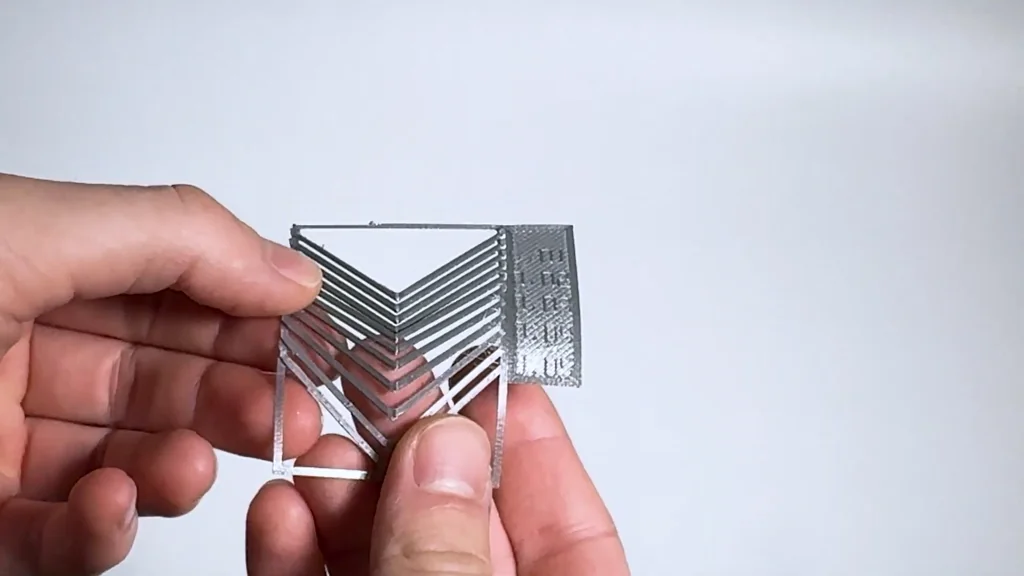
Once you identify the perfect line, save it as a preset for that specific filament. If you use an AMS, you must apply the setting to each slot individually. There is also a pattern method available in the calibration menu. It's a different version of the test. Compare the results from both methods to confirm your K-value. It's very accurate.
Applying Final K-Values
My perfect K-value was 0.02. Anything higher caused underextrusion. You must go into your device settings to apply these values. If you have an AMS, configure each filament slot. I have four different ABS filaments, so I set them all. It's a necessary step. Don't leave it at default.
Troubleshooting Calibration Errors
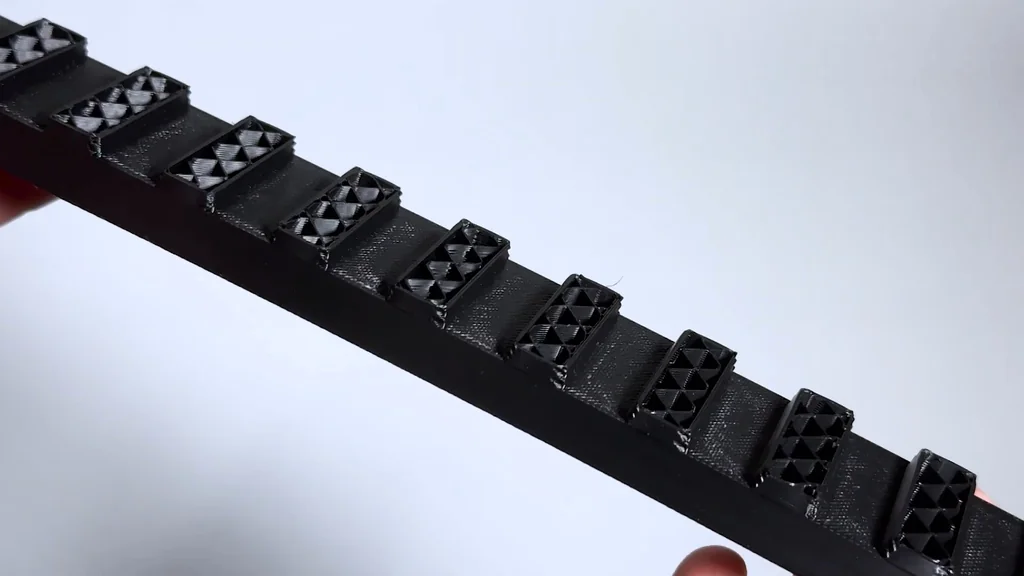
I once accidentally set my K-value to 0.002 instead of 0.02. It took forever to figure out why my prints were failing. It was an honest mistake. Always double-check your numerical inputs. It's easy to miss a zero. That's the whole process. I hope this helps you fix your print quality.
⚠️ CAUTION: SAFETY WARNING!
Always handle heated build plates with caution to avoid burns. Ensure your workspace has adequate ventilation when printing with ABS filament to avoid inhaling fumes.
Summary & Tips
Calibrating your printer's flow dynamics is the best way to resolve persistent print defects. Software updates can often be the hidden cause of sudden quality drops. By systematically testing and saving your K-values, you ensure consistent results across different filaments. Keep your build plate clean and your settings dialed in for the best performance.
📋 FAQ
❓ Why do my 3D prints warp?
Warping usually occurs when the bottom layer loses adhesion to the build plate. It's often caused by uneven cooling or a dirty print surface. Using adhesive glue helps. It's a common fix.
❓ What is the K-value in 3D printing?
The K-value is a flow rate compensation factor. It controls how much filament the extruder pushes to maintain consistent line thickness. It's a critical setting.
❓ Do I need to calibrate for every filament?
Yes, you should. Different filaments have different flow characteristics, even if they are the same material type. It's safer to calibrate each one.
❓ Can firmware updates break my printer settings?
Honestly, yes. Updates can sometimes reset or alter your saved calibration values. Always check your settings after a firmware update.
Disclaimer: I purchased all tools for this guide with my own money to ensure an unbiased review. This post contains affiliate links, meaning I earn a small commission if you make a purchase at no extra cost to you.